Results Tab
The Results tab is the central point analysis of the results. It is grouped in three subtabs: Report, Plots, and Map. The Report tab shows the residual saturation and the diameters, curvatures and capillary pressure values for each saturation step. The Plots tab contains plot options for the analysis of the results. The Map tab contains all resulting data from the Capillary Pressure run. This data is the basis for the tables in the Report tab and for the plots in the Plots tab.
Report
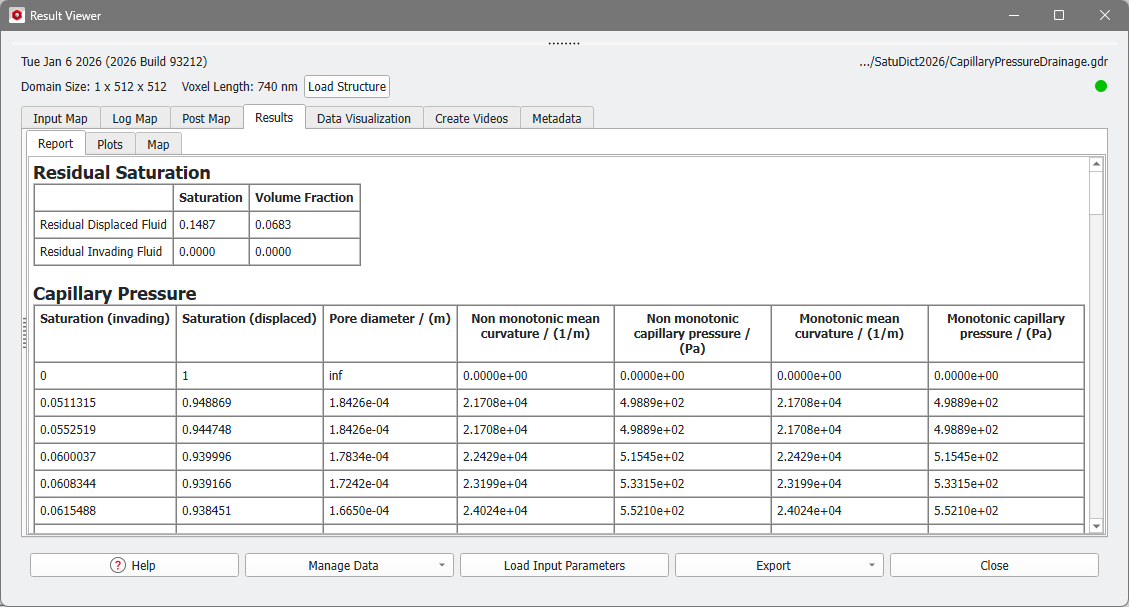
First, the Residual Saturation of invading and displaced fluid at the end of the simulation is given. Both the Saturation (using the pore space as reference volume) and Volume Fraction (relating to the total sample volume) are displayed.
For a typical capillary pressure result file, the table shows the Saturation of the invading fluid, the saturation of the displaced fluid, the Mean curvature and the calculated corresponding Capillary pressure for every step (pore size). The mean curvature approximates the fluid-fluid interface curvature.
If the Dynamic Pore-Morphology Method with the option Non-Monotonic Capillary Pressure was used for the computation, mean curvature and capillary pressure values are shown for both the monotonic and non-monotonic capillary pressure curve.
For computations with the Contact Angle Method Constant Contact Angle also the Pore diameter is shown in the table. This is the diameter of the pores filled in this saturation step.
|
Note! If the Contact Angle Method Multiple Contact Angle was used for the computation of the saturation pressure curve, a warning may appear in the result file created. 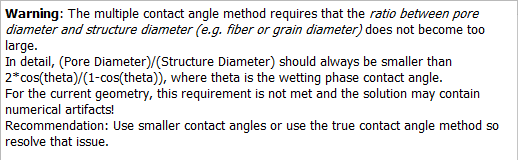 The reason is that the defined contact angle for the invading fluid is close to 90° and the diameter of pores in the structure is high compared to the diameter of components of the structure. Two main components of the multiple contact angle method are a dilation and an erosion process. At high contact angles, the dilation radius can become much larger than the erosion radius. For solid objects in the structure with diameters much smaller than the maximum pore diameter, this can lead to artifacts in the fluid distribution such as higher than desired contact angles, larger saturation steps and fewer saturation steps. This happens if the ratio between pore diameter and diameter is larger than . With the True Contact Angle method, this problem can be avoided. |

Plots
Pressure-Saturation
Observe the tabular results of the Report subtab as a diagram in the Pressure-Saturation subtab.
On the left, the Post-Processing Widget allows you to fine-tune this graph. Collapse the Post-Processing Widget by pulling it to the left.
Select the Graph Type (Pressure over Saturation or Saturation over Pressure), Phase Selection (Invading Fluid or Displaced Fluid), Saturation Unit (Relative or Absolute), and Reference Volume (Pore Space or Total Sample Volume). Check Invert Saturation to show the values of the saturation in decreasing instead of increasing order.
Click Apply to modify the plot according to the chosen settings.

In the example, at the beginning of the drainage process, the porous structure does not contain the invading fluid Oil. It is saturated (100%) with Water. As the pressure increases, the Oil starts invading the structure and forces the Water out of it. Thus, the saturation of the Oil is increasing. By the end of the drainage process, where the pressure is at its highest level, the structure is 85% saturated with Oil and 15% saturated with Water (Residual). The non-monotonic increase of the pressure value for the simulation with the Dynamic Pore-Morphology Method is visible, especially for saturation values between 70% and 80%.
Layered saturation
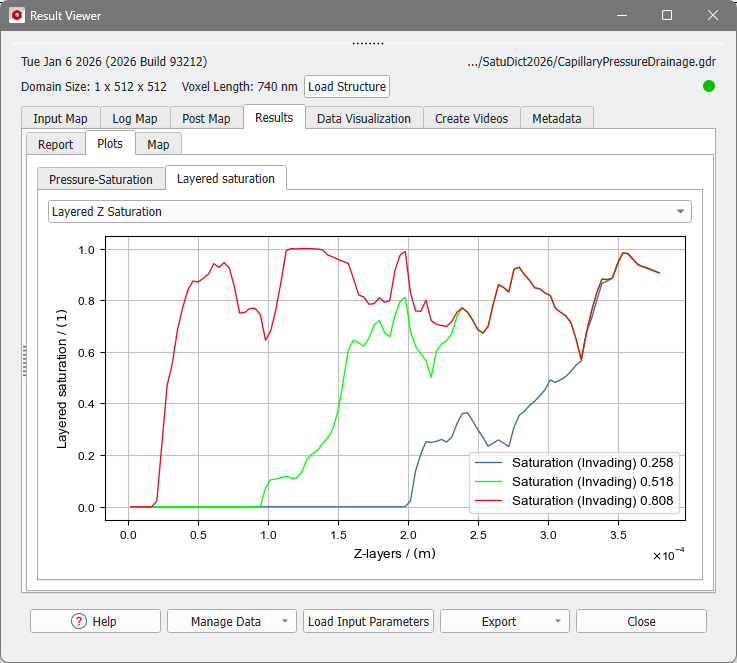
In the subtab Layered saturation, the saturation along each of the three axes (X-, Y-, and Z-axis) is shown.
From the drop-down menu choose the direction to observe. For each layer, the occupied space of the invading fluid relative to the pore volume of this layer is plotted. This can be done for several steps of the calculation, which corresponds to different saturations of the whole structure. By right-clicking into the plot area, the curves of different saturation steps can be selected.
Map
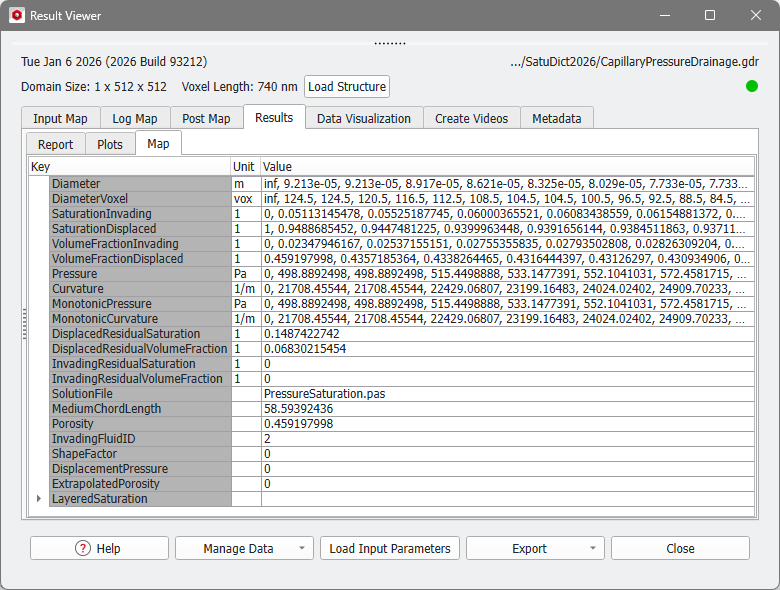
The Results - Map subtab gives access to the computed values. It contains also the values from the Report and Plots subtabs.
For the capillary pressure curve, it lists, e.g., the calculated Pressure, Diameter, and Saturation values. The name of the *.pas file for the visualization of results is also given. The Invading Fluid ID (here, 2 is Oil) shows the assigned Material ID of the invading fluid.