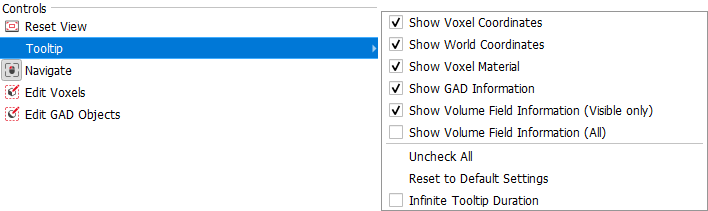
Select the options available under Controls, to reset the current view settings and to change the behavior of the mouse.
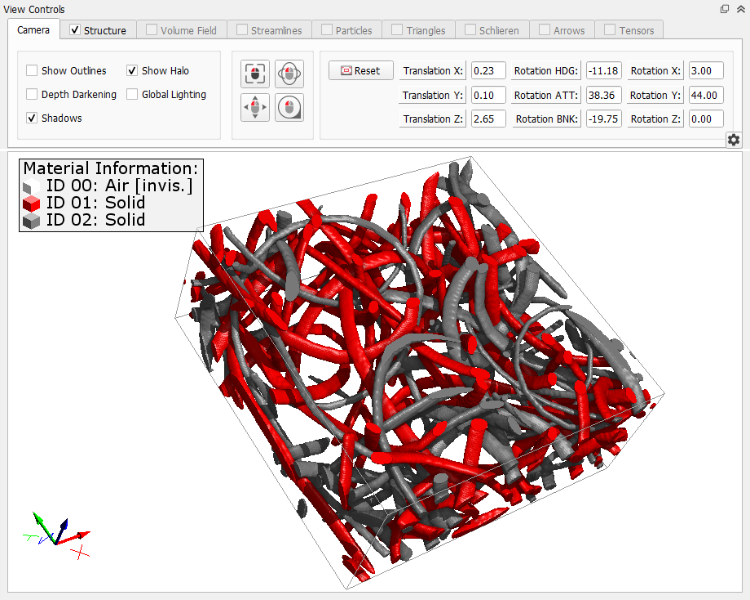
Choose Reset View to apply the start-up view settings. This is a shortcut to the corresponding button in the Camera tab of the view control panel.
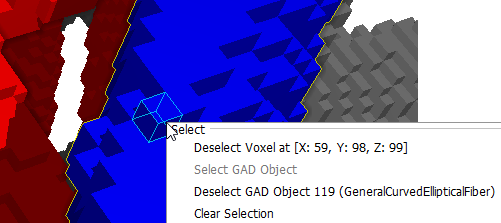
Choose which information should be shown as Tooltip at the position of the mouse pointer in the structure.
For the position of a voxel, the coordinates can be shown in number of voxels in each direction (Show Voxel Coordinates) or as coordinates in length units with respect to the origin of the structure (Show World Coordinates).
Check Show Voxel Material to add the Material and Material ID information to the tooltip.
Check Show GAD Information, to show the object type and Object ID of the GAD object the voxel belongs to (only shown if analytic object data is available for the structure).
Select Show Volume Field Information (Visible Only) to show the value of the currently displayed volume field at the current position (only shown if a volume field is loaded).
Or you can select to Show Volume Field Information (All) to show the values of all volume fields available in the GeoDict memory at the current position.

|
Know how! You can choose to select no volume field information at all (both unchecked), but you cannot check both options at the same time.
|
Use Uncheck All to deselect all boxes of the Tooltip options, or Reset to Default Settings to reload the GeoDict default settings for the tooltips. These are shown above.
Check Infinite Tooltip Duration to prevent the tooltip from vanishing after a few seconds.
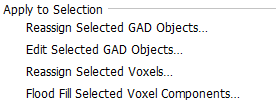
For the functionality of the mouse, you can switch between  Navigate, Navigate,  Edit Voxels and Edit Voxels and  Edit GAD Objects, which are also available as icons in the Toolbar. Edit GAD Objects, which are also available as icons in the Toolbar.
|