Morphological Filter
The Morphological Filter contains several different Operations.
Each Operation requires the input of a Sphere Radius, controlling the size of the region, in which the filter is applied. Click Apply to use the chosen Operation.
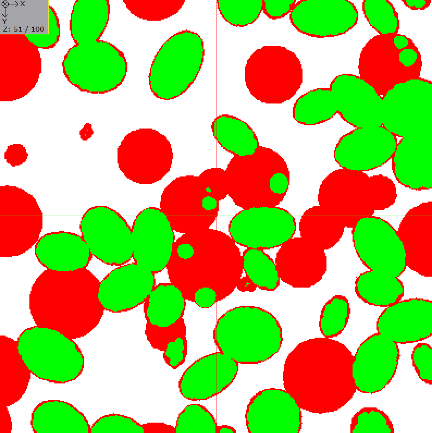
Some of the Operations are illustrated with an example based on an artificial gray value image consisting of few grains at high porosity. The 2D slice images show a multiple threshold segmentation preview as described here.
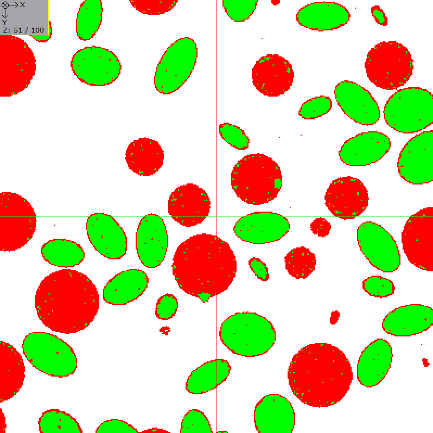
- Opening: Removes bright structures smaller than the given spheres. Please note, the Cleanse tool of the ProcessGeo module removes these so-called “Island artifacts” from segmented structures.
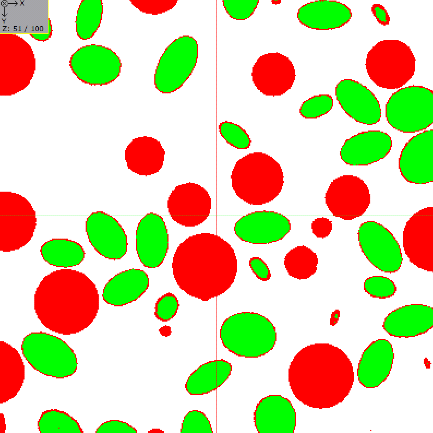
- Closing: Removes dark structures smaller than the given spheres. Please note, the Cleanse tool of the ProcessGeo module removes these so-called “Island artifacts” from segmented structures.
- Top Hat: Removes bright regions larger than the given sphere.
- Bottom Hat: Removes dark regions larger than the given sphere.
- Erosion: Grows dark regions in the image. Assigns the darkest gray value to spheres with the given radius, in the entire image.
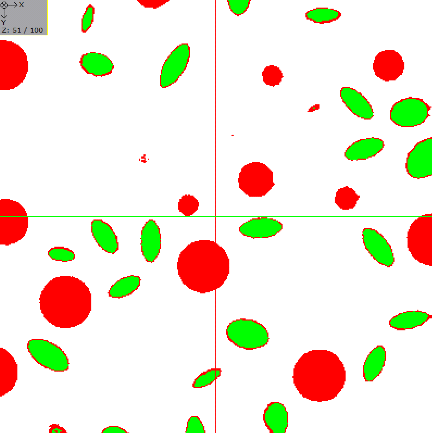
- Dilation: Grows bright regions in the image. Assigns the brightest gray value to spheres with the given radius, in the entire image.