Data Visualization
Under the Data Visualization tab, the results can be loaded for graphical visualization in 2D-Cross section view or 3D-Rendering. Flow fields and concentration fields that have been calculated can be visualized by clicking Load.
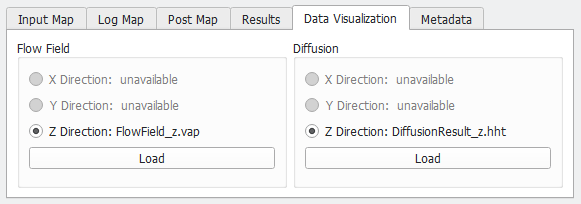
In the opening Loading volume file dialog, select the volume fields you want to load. Supplemental fields, as, e.g., the Velocity:Velocity field shown in the dialog, will be computed from the saved fields in the file.
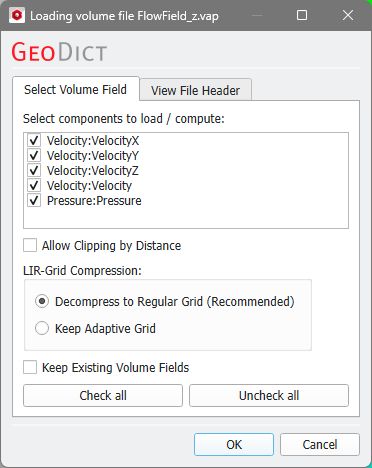
Selecting Allow Clipping by Distance also computes a distance field using a signed Euclidean distance transform (see the MatDict-EDT chapter for more information). The distances can then be used to threshold the other loaded volume fields.
A compressed field is saved when checking Write Compressed Volume Fields under the Solver tab of the LIR Solver Options dialog. If a compressed volume field is opened, it is possible to choose either Decompress to Regular Grid (which is the recommended option) or Keep Adaptive Grid, which means to load the field in compressed form.
|
Important! Some visualization features of volume fields (e.g the visualization of streamlines) are available only if the field is loaded in decompressed form. However, loading a compressed volume field needs less memory, which can be advantageous for large structures. |

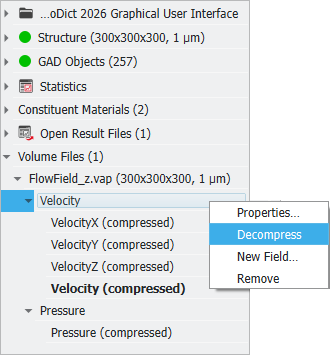
It is also possible to load a volume file in compressed form and decompress it later. In the project status section on the left, right click on the volume image and choose Decompress.
Check Keep existing Volume Fields, if already loaded volume fields should be kept in the GeoDict memory.
With the buttons Check all and Uncheck all, the fields from the volume file you want to load can be selected or deselected at once.
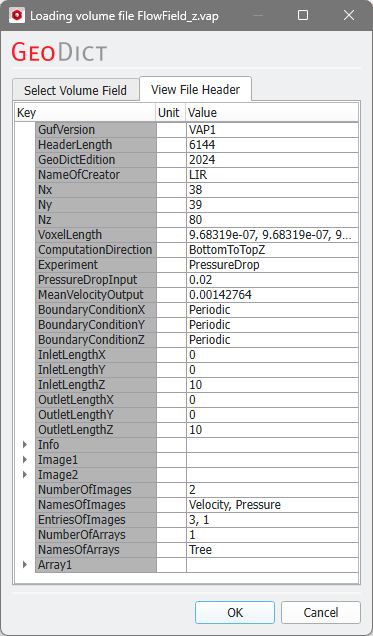
In the View File Header tab you can see the header of the volume file. The header provides information about the domain size, voxel length, boundary conditions, and many more. Nothing can be edited in this tab, only the available information, depending on the volume file type, is shown.
|
Know how! You can open a volume file with a text editor to read the header which is the only human-readable part. However, it is more convenient to view this during import in GeoDict. Moreover, large volume files take a long time to open in a text editor, or the editor may be unable to open them at all. Find more about the content of the header in volume files in the GeoPy Scripting chapter. |

Clicking OK starts the import of the volume file.
The options for the visualization of results are explained in detail in the Visualization chapter.
