|
Navigation: GeoDict 2026 - User Guide > Simulation & Prediction > BatteryDict > Battery > Analyze Battery |
Scroll |
Results
After successful completion of a battery analysis, the GeoDict Result Viewer opens for the results.

The Results – Report subtab shows the information on electronic connectivity. The volume fractions of the connected and unconnected parts for the different battery components are listed. First, these volume fractions are shown for the whole battery cell, then for anode and cathode separately. The volume fractions are given in respect to the complete volume of the battery structure. Because unconnected parts do not contribute to the battery's performance, the goal is to keep their fraction as small as possible. 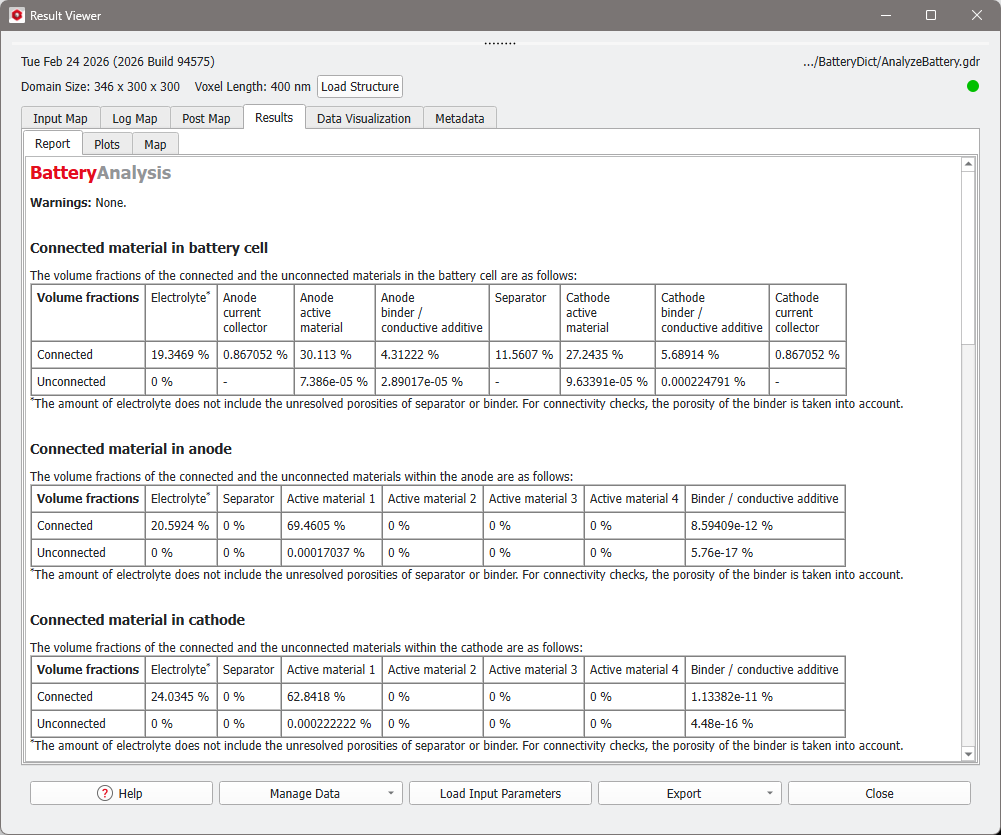 After the section that explains which parts of the battery are connected or unconnected, the Results – Report tab shows a table listing each component’s volume and its volume fraction for the whole cell, as well as for the anode and cathode separately. The same information is also included in the Battery Designer result file. |
Under the Results - Plots subtab, the porosity, and the distribution of active material over the whole battery are shown as averaged values over each slice in Y- and Z-direction. This is the same plot as shown for a result file of the Battery Designer. |
To visualize the location of connected and unconnected parts of the battery components, load structure files located in the Analyze Battery result folder from the Data Visualization tab. 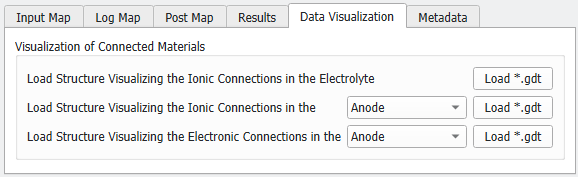 Structure files that show both electronic and ionic connections are available for the anode, cathode, and electrolyte. They are stored in the result folder. As an example, the image below shows the structure visualizing the ionic connection within the electrode; in this example battery there is no unconnected electrolyte. In the Color & Visibility tab of the GUI side bar, the binders and solid materials are hidden while the electrolyte is set to visible. For more details on visualization options, refer to the GeoDict Visualization chapter. The result gives further insights to the electrode's connectivities. Details of the ionic connections in the anode become visible when you hide every material ID except for the unconnected anode active material. Then zoom in to see the small spots where that active material has no ionic connection. Below find also an example for the electronic connectivity result in the cathode. Here, also parts of the binder have no electronic connectivity. |
After the analysis of a battery structure, a GeoDict result file (.gdr) is created in the selected project folder. A subfolder with the same name as the result file contains the used battery structure (Structure.gdt) and several files generated for, or by, the analysis: The input structures used for both electrodes (Anode.gdt and Cathode.gdt), as well as the GeoDict structure files showing electronic and ionic connections in the active materials, the electrolyte, and the binder and carbon black are available (CellWith…Connections.gdt). 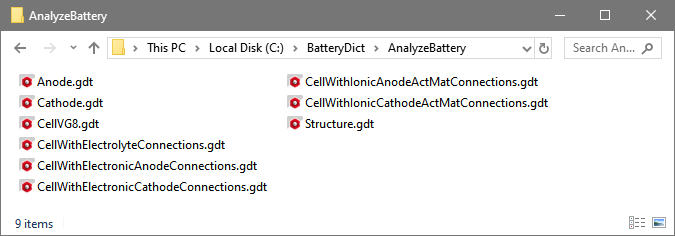 |
©2026 created by Math2Market GmbH / Imprint / Privacy Policy
