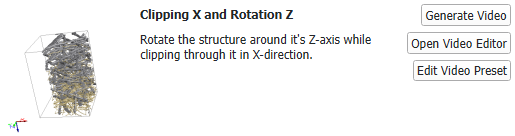
Import as Video GeoApp
Via the Import as Video GeoApp, your own video presets are added to the Create Video dialog and are displayed with their own preview.
A *.gps (GeoDict Project Settings) file saved from the Video Editor is imported by clicking the Import button for the Import as Video GeoApp entry in the Create Video dialog.
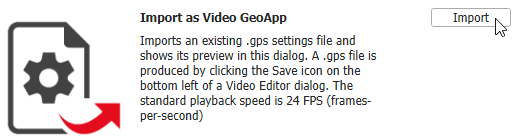
Select the saved *.gps file and click Open.
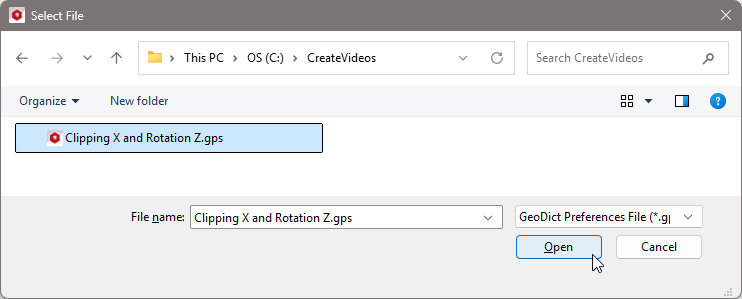
Afterwards, the selected animation is applied to the structure currently loaded to the Visualization area and the result file (*.gdr) of the video generation, the result folder containing the images, the GPS file, and the *.mp4 file for the preview are saved in the GeoDict settings folder (C:\Users\%Username%\GeoDict2026\VideoPreviews).
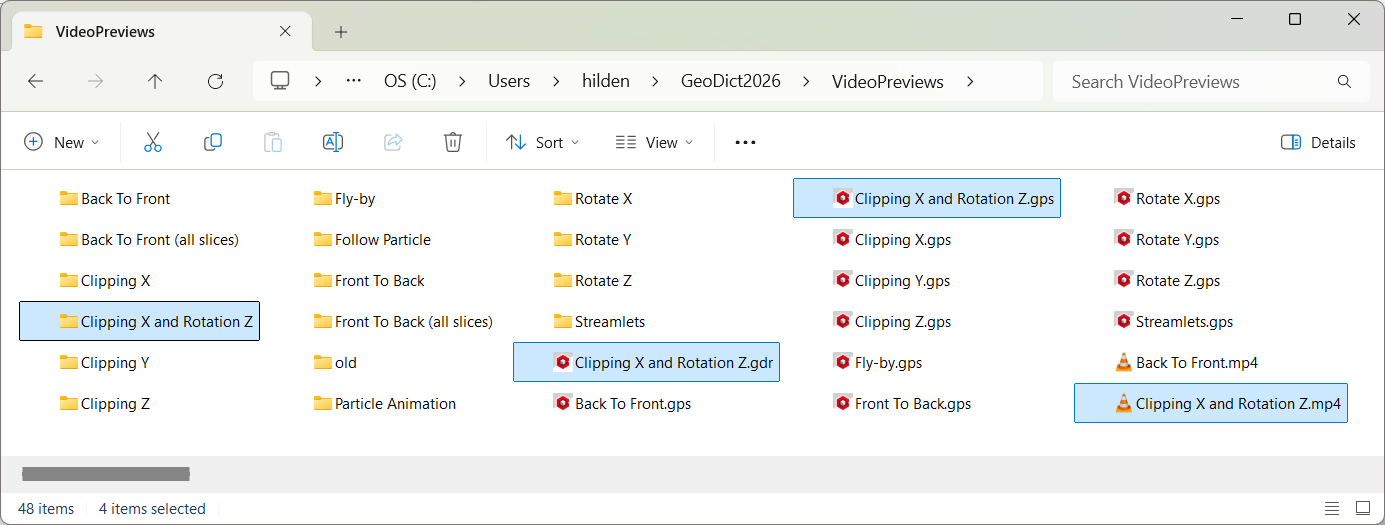
After the video is created, the new video preset is available in the Create Video dialog list with its own preview. It can be modified or removed through the Edit Video Preset button and its dialog. Here, a GPS file with the name Clipping X and Rotation Z was imported and a description was added via the Edit Video Preset dialog.