Create Video Dialog
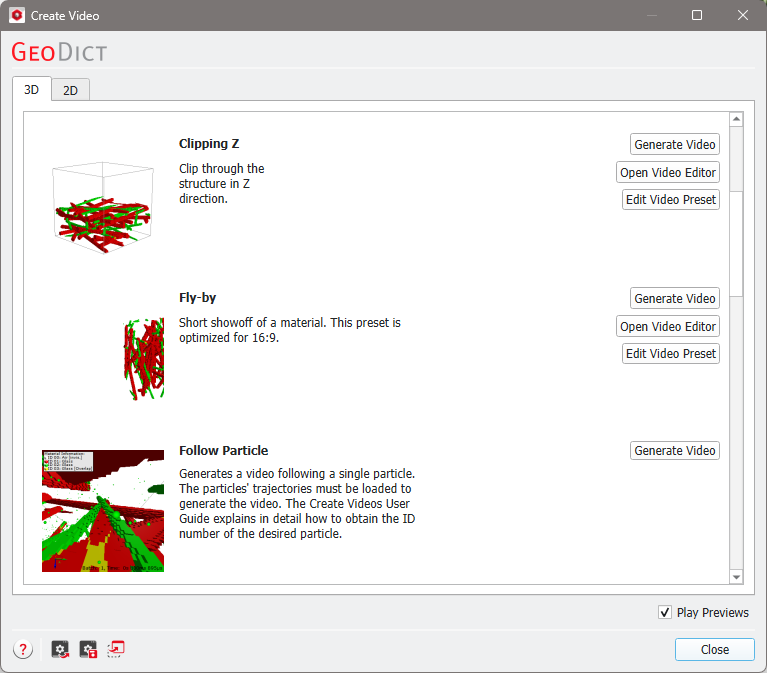
The video dialog gives access to several preset animations and creating your own animations.
If a structure or a volume field is loaded in the Visualization area of the GeoDict GUI, the Create Video dialog opens after selecting File → Save Video as… from the menu bar or by clicking the icon  in the GeoDict toolbar.
In the Create Video dialog, the options are organized into the 3D and 2D tabs. The Create Video dialog opens automatically to the 2D tab or the 3D tab depending on the current view (2D or 3D) in the Visualization area. That is, the 3D tab is active if a structure is visualized in 3D while opening the Create Video dialog. When switching to the 2D tab, the visualization of the structure changes to 2D view automatically in the GeoDict GUI.
 Use Presets
For 3D and 2D visualization, the Create Video dialog contains a selection of several preset animations that are used to create a video immediately after clicking the corresponding Generate Video button.
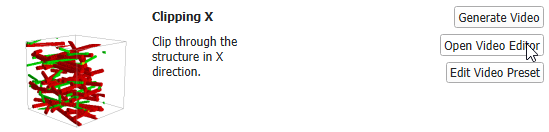
The preset file for each animation may be opened and edited in the Video Editor dialog by clicking the Open Video Editor button. The preview on the left shows (approximately) how the finished video will look like.
|
Import as Video GeoApp
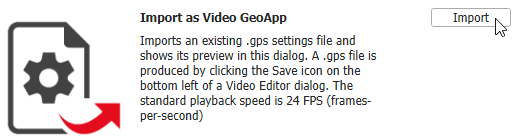
Via the Import as Video GeoApp, your own video presets are added to the Create Video dialog and are displayed with their own preview.
|
Create Video from Image Stack
Open Editor
Finally, the Video Editor dialog can be opened containing the last edited animation by clicking Open Current or as a fresh, empty dialog by clicking Open Empty.
|
General Options
Uncheck Play Previews on the bottom right of the Create Video dialog to stop the animation of the previews that display the Video Presets.
Resting the mouse pointer over an icon prompts a tooltip showing the icon’s function to appear.

|
Open the GeoDict User Guide chapter for this topic.
|

|
Load previously saved Create Video dialog Start-up Settings.
|

|
Save the current Create Video dialog settings as Start-up Settings.
|

|
Raise the GeoDict Main Window.
|
Clicking Close closes the Create Video dialog.
|
Topics of this section
|
- Generate Video
Open the Export Video dialog giving access to export settings as name, format, FPS, and more.
- Video Presets
Several video presets are provided that let you generate great videos from the loaded microstructure by simply clicking Generate Video.
- Import as Video GeoApp
Add your own video presets to the Create Video dialog where they are displayed with their own preview.
- Create Video from Image Stack
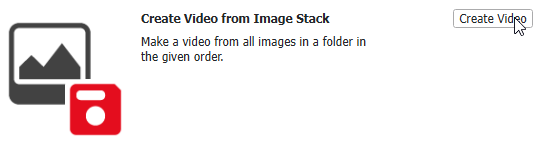
An existing stack of single frames is converted into a video.
|