Any properties that are changed in the Visualization area of the GeoDict GUI while the Video Editor dialog is open, may be pulled into the plot of the Graph field and be part of the final video.
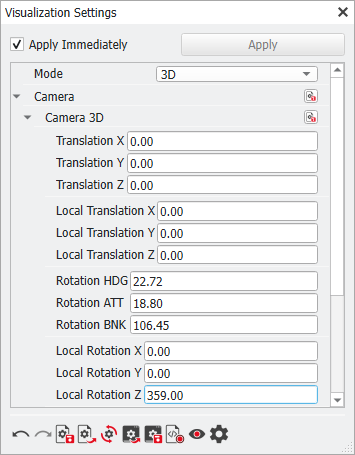
In the GeoDict GUI, click the Visualization tab in the sidebar to the right of the Visualization area to unfold the Visualization Settings.
Unfold the settings for Camera and then, Camera 3D. For Local Rotation Z, enter 359.
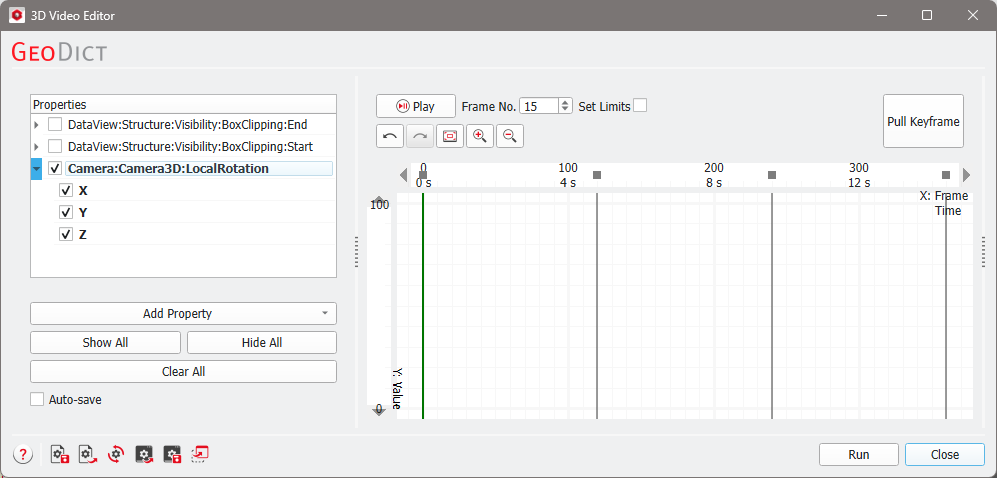
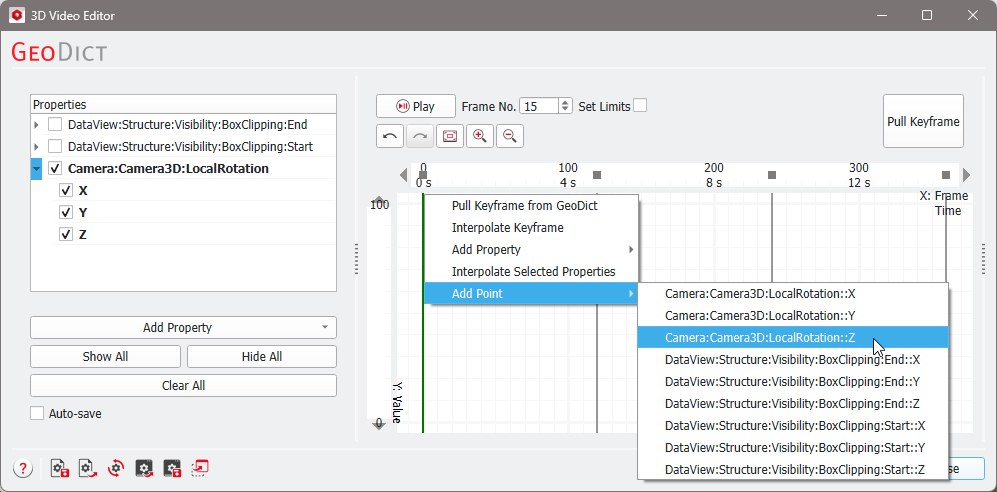
In the 3D Video Editor dialog, click Pull Keyframe. In the opening dialog, select Local Rotation and click OK.
The new property appears in the Properties field and in the plot of the Graph field.
If the playhead (green line) in the plot of the Graph field is not placed upon an existing keyframe, a new keyframe is added at the playhead’s position. The plot for the new property is added in the keyframe field between the last keyframe before and the playhead’s position.
Here, the playhead was located at frame 360, which was the last keyframe from the clipping animation. No new keyframe had to be added and the keyframe before (frame 240) was used as a start keyframe for the new animation.
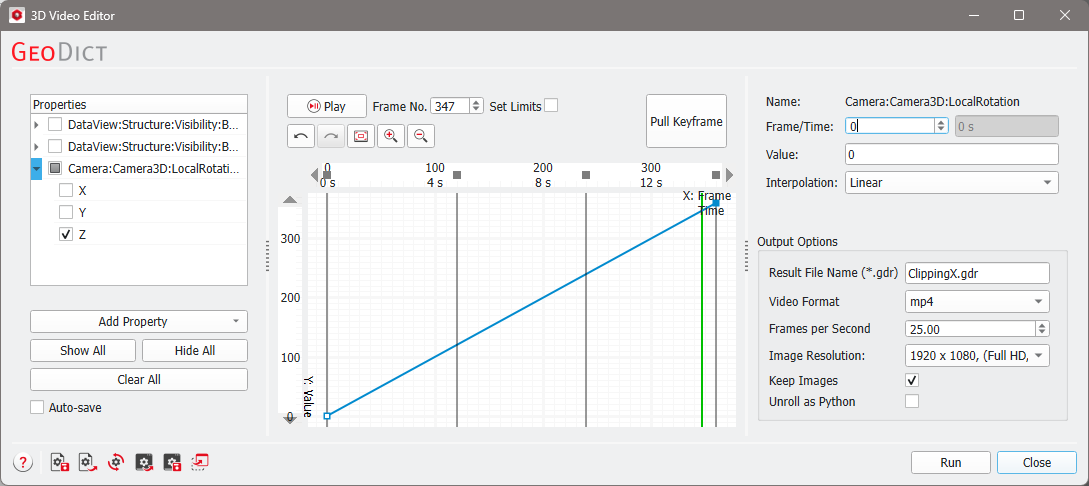
To highlight the Local Rotation property in red, select it in the Properties field. To apply the animation to the complete movie, the frames of the two data points of the Local Rotation property need to be changed.
First, in the Properties field, hide all other properties to only see the plot for Local Rotation in the plot of the Graph field. Uncheck BoxClipping:Start and BoxClipping:End. Unfold the sub-properties for Local Rotation by clicking the triangle on the left, and also hide the sub-properties X and Y.
Expand the Value field. In the plot of the Graph field, select the first data point (with value 0) by clicking on it and enter 0 for Frame in the Value field. In the same way, change the Frame of the second data point (with value 359) to 360.
Observe the structure’s rotation around its Z-axis in the Visualization area of the GeoDict GUI while clicking on different frames in the plot of the Graph field.
Preview the animation in the Visualization area of the GeoDict GUI by clicking Play in the upper part of the Graph field. Here, all properties were activated in the Graph field.
|
 icon in the toolbar or selecting File → Open Structure (*gdt, *gad)… in the menu bar.
 or File → Save Video As…) and choose Open Video Editor next to the Clipping X video preset.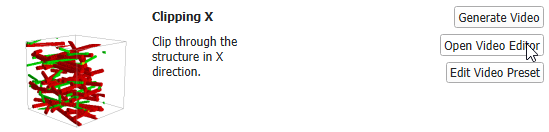
 How to pull a keyframe from GeoDict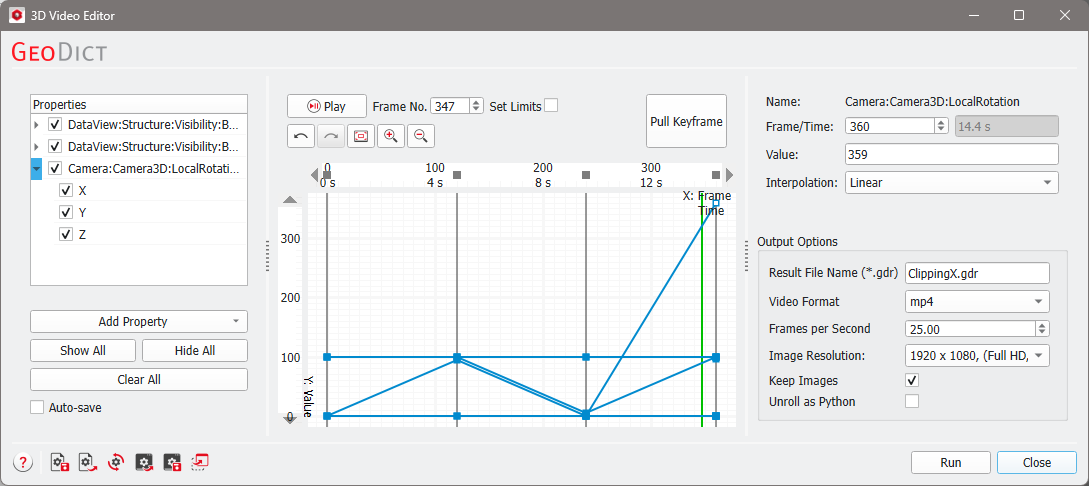

 in the bottom left corner. This file can be reloaded to the video editor at any time to apply the animation to another structure. For an often used animation it is also very convenient to add it as a GeoApp to the presets in the