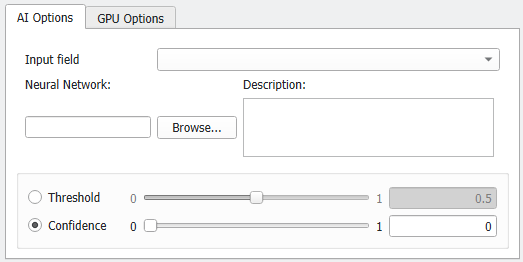
AI Options
Initialization
 Input Field
Select one of the currently loaded grayscale images as Input field to enhance from the pull-down menu.
Several grayscale images can be loaded at the same time by checking Keep existing Volume Fields in the Loading volume file dialog, when loading the image with File - Load Volume File. Using ImportGeo-Vol also different volume fields can be loaded.
Then, select the Input field to segment from the pull-down menu.
|
Neural Network and Description
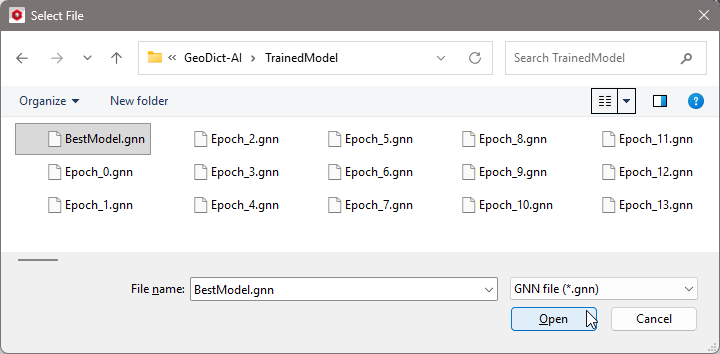
Browse for the neural network trained with Train Neural Network and most suitable for the image under consideration. For this, under Neural Network click Browse.
Select a neural network *.gnn file, for example the BestModel.gnn from a prior training.
In the Description, the current constraints for the application of the neural network are listed, as entered in the Train Neural Network dialog, e.g., the diameter range of the fibers the neural network was trained for.
|
Transforming confidence field to structure
The neural network splits the structure into different material classes. For each resulting class a confidence field is computed. These fields contain values between 0 and 1. A value of 1 means, the neural network is perfectly sure, that this voxel should be assigned to the corresponding class, while a value of 0 means the voxel definitely does not belong to the corresponding class.
Each voxel then is labeled according to the field with the highest value. For example, consider a structure where three materials should be identified and the field values for one voxel are as follows:
- class 0 (cellulose fiber): 0.7
- class 1 (elliptical fiber): 0.25
- class 2 (binder): 0.05
In this case, the voxel is labeled as class 0 (cellulose fiber).
the neural network produced the confidence fields in the file nnOutput.npz. These parameters influence the labeling of voxels according to the probability values in the output fields (*.npz) from previous Apply Neural Network runs.
Use Threshold for two-channel outputs, only, for example to prevent over-segmentation.
Use a higher Confidence value if you want to find the voxels, where the network was uncertain.
Threshold
The Threshold allows proficient users to influence the decision to which material class a voxel belongs. The parameter is only available if the chosen network is trained to differentiate between exactly two material phases. For three or more material phases this parameter is grayed out.
If the identified features are over segmented, choosing a smaller threshold can lead to better results. For this, the confidence field (*.npz) can be loaded, without running the complete identification process again.
Find a visualization of the confidence field (*.npz) and threshold here.
For most applications, however, the default values can be kept because the default threshold of 0.5 usually produces good results for a well-trained network.

|
Important! This parameter only has an impact on two-channel results, i.e., distinguishing between only two material phases.
|
|
Confidence
Specify the minimum required confidence value for selecting a class for a voxel.
If a positive confidence value is specified and none of the fields has a higher probability value, the material is set to "undefined" in these uncertain locations, and material ID 255 is assigned. In the above example, consider a confidence value of 0.8. In this case, the voxel would be labeled "undefined" instead of class 0.
The values of the confidence fields of all classes sum up to 1. Thus, it is impossible that for any voxel all confidence values are smaller than 1/n, where n is the number of classes. This is why setting the confidence value below 1/n has no impact. Therefore, the default value is set to 0, meaning all voxels are labeled as one of the classes as described above and no uncertain areas will remain.
An example is shown here.
|