|
Navigation: GeoDict 2026 - User Guide > Material Modeling > GrainGeo > Create Grains > Options > Object Options > Object Parameters |
Scroll |
Shape Parameters
Define the object's shapes through various parameters. For each object type the object's Center distribution and the Orientation can be defined as explained in the corresponding topics.
Size Mode
The object types Ellipsoid, Superquadric Particle, Box, Convex Polyhedron (Enclosing Objects Ellipsoid, Box and Pyramid), Pyramid, and all Fiber types have the parameter Size Mode. From the pull-down menu three options can be selected. Here you can decide if the different diameter and length parameters of one object type should be interdependent.

All diameter, height and length parameters are independent from each other, and thus have their own values and distributions available through their Edit... buttons. 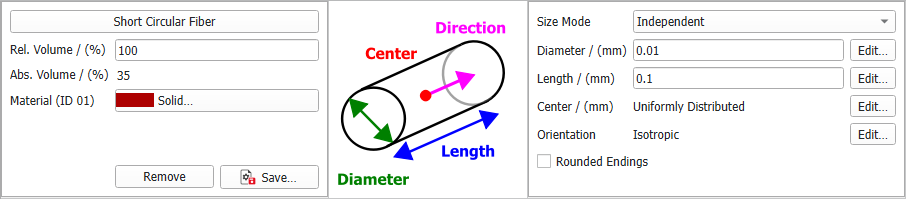 |
The different diameter/height/length parameters are coupled. Clicking the Edit... button for these parameters, the coupling can be defined in the distribution table. The following structure, entirely made of short circular fibers, is generated with the coupled values for diameter and length entered in the coupled distribution table shown here. Observe the three distinct diameter-length combinations of short circular fibers:
|
The different diameter/length parameters are given with an aspect ratio. They depend on the first given Diameter (or Length for some object types). The resulting diameter/length value then is the aspect ratio multiplied with the first parameter value, for example: where Aspect Ratio is short for Diameter 1 - Length Aspect Ratio. This way, you can, for example, generate fibers with a diameter distribution keeping the same aspect ratio to their length as shown below. |
Object Specific Shape Parameters
Spheres are defined by one Diameter value. Hollow Spheres additionally are defined by the Wall Thickness. The Diameter and Wall Thickness values can be edited by clicking Edit... to open the corresponding dialog. They can be set to a Constant value, or to follow a diameter distribution: Uniformly in interval, Gaussian, Probability Distribution, or Log-Normal (Log-Normal). |
For Sphere Agglomerates the Sphere Diameter can be different for the spheres belonging to the same agglomerate. The Number of Spheres defines how many spheres build one agglomerate. The value can either be constant or follow a distribution. The Aggregate Mode defines how the spheres are agglomerated. They can be agglomerated Branch like, Sphere like, an Intermediate state between those two or you define your Custom aggregate mode by editing the Attach Probabilities. The attach probabilities are automatically normalized to sum up to 1 after closing the dialog and define with which probabilities one sphere is attached to 1, 2 or 3 other spheres. |
Ellipsoids are defined by three diameters (Diameter 1, Diameter 2, and Diameter 3) which control the shape and size of the object. The values can either be constant or follow a distribution. |
Superquadric Particles are defined by three diameters (Diameter 1, Diameter 2, and Diameter 3) and the two blockiness parameters (Blockiness 1 and Blockiness 2) which control the shape and size of the object. The diameters can either be constant or follow a distribution. The surface of a Superquadric Particle is implicitly defined by the formula: The three Diameter values correspond to the diameters d1, d2, d3 in the formula, Blockiness 1 to the exponent b1 and Blockiness 2 to the exponent b2. For exponents the particle takes the shape of an octahedron, exponents lead to an ellipsoidal shape, and for higher exponents the shape approaches a rectangular box. Parameters between 0 and 1 lead to a concave surface and might decrease the size defined by the diameters. Thus, it is recommended to use values of at least 0.5. Blockiness 1 describes the shape in the plane defined by Diameter 1 and Diameter 2 as shown on the right and the plane described by Diameter 1 and Diameter 3. Blockiness 2 describes the shape in the plane described by the diameters Diameter 2 and Diameter 3. |
The three values of Length for Boxes are editable by clicking Edit... and choosing the desired settings in the Length dialog. The Length can be set to take a Constant value, or to follow a distribution (Uniformly in interval, Gaussian, Probability Distribution, or Log-Normal). Boxes are defined by Length 1, Length 2, and Length 3 which control the shape and size of the object. |
For planar polyhedrons, define the Thickness, the Number of Edges and the Ray Length. All three parameters can be set to take a Constant value, or to follow a distribution. The Ray Length is the distance from the center of the object to any of the edges. |
For a Convex Polyhedron, the shape determining parameters depends on the chosen Enclosing Object to be defined in it's tab. For a Box, Sphere, Ellipsoid or Pyramid as Enclosing Object, the respective diameters must be set as described in their respective sections. The Point Mode defines if the vertices of the polyhedron can be defined anywhere inside the Volume of the enclosing object, or if they must lay on its Surface. To generate a Convex Polyhedron, several random points (Number of Random Points), serving as vertices of the polyhedron, are placed inside the chosen Enclosing Object. Additionally, checking Match Enclosing Object Volume scales the object size until the volume is as big as the volume of the enclosing object. Leaving this option unchecked always leads to a smaller volume. |
Pyramids are defined by their Diameter, Height, and Number of Edges. The values of Diameter and Height are editable by clicking Edit... and choosing the desired settings in the opening dialog. They can be set to take a Constant value, or to follow a distribution (Uniformly in interval, Gaussian, Probability Distribution, or Log-Normal). |
The values of Length and Diameter for all Short Fibers, as well as the Side Length of short rectangular fibers are editable by clicking Edit... and choosing the desired settings in the opening dialog. The Length, Diameter, and Side Length can be set to take a Constant value, or to follow a distribution (Uniformly in interval, Gaussian, Probability Distribution, or Log-Normal). For circular fibers only Diameter and Length define the shape. For non-circular fibers, the diameter and length but also other parameters control their shape. For a hollow fiber, the Inner Diameter Fraction defines the ratio of the entered (outer) diameter to the inner diameter. For fibers with Rosetta cross-section, the Amplitude Fraction determines the length of the Rosetta leaves, and the Number of Leaves defines how many leaves the Rosetta has. For short elliptical fibers, defined by two diameters, the Diameter 1 - 2 Aspect Ratio is the relationship between the longer diameter Diameter 1 and the shorter diameter Diameter 2. For short cellulose fibers, defined by two diameters and two inner diameters, the Diameter 1 - 2 Aspect Ratio is the relationship between the longer diameter Diameter 1 and the shorter diameter Diameter 2. The Inner Diameter Fraction defines the inner diameter similar as for the hollow fiber shown above. Since the cellulose fiber has an elliptical shape, two inner diameters are defined, where the inner diameter 1 is defined by the product of diameter 1 and the inner diameter fraction and the inner diameter 2 depends on the diameter 2 in the same way. For short rectangular fibers, the Side Length 1 and the Side Length 1 - 2 Aspect Ratio can be entered. For short angular fibers the Number of Edges of the fiber cross-section must be defined. All short fibers with any cross-section can be created with or without rounded ends by checking or leaving un-checked the Rounded Endings box. Observe the variation in the shape of the short rectangular fibers after checking the Rounded Endings box. |
Combined Objects are created through the combination of two or more objects (which have the same or different object types). They must be generated beforehand with GadGeo and saved in GAD-format. To learn how to generate combined objects with GadGeo refer to the GadGeo User Guide. Click Browse … in the right column of the Object Type panel to select and import combined objects from a *.gad-file. The Christmas tree example for combined objects is included in the installation folder.  The Scaling Factor controls the size of the objects. A scaling factor of 1 generates the selected combined object with original size. |
©2026 created by Math2Market GmbH / Imprint / Privacy Policy
