Module Section
In the Module Section you can edit parameters and start generations or computations using one of the available GeoDict modules.
The heading of the Module Section changes to the GeoDict module selected from the menu bar. The GeoDict modules are organized into:
- modules to Import and pre-process files and 3D image data,
- generator and structure-modifying modules to Model microstructures,
- modules to Analyze your structure,
- simulation modules to Predict properties,
- and modules to Export files to other formats.
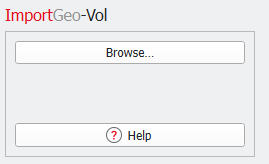
For the Import modules, there is a Browse... button for choosing files that you want to import into GeoDict.
For all other modules, the module section contains a pull-down menu, from which you can choose a command to execute.
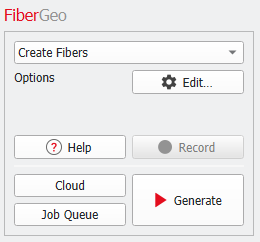
The Edit… button opens the Options Dialog, where you can modify the necessary parameters for the GeoDict generators, modifiers, or solvers.
|
Each option is explained by a tooltip which appears when resting the mouse over the icon. |


The Help button directly links to the chapter of the User Guide where the chosen command is explained. The Help button is also available in the options dialogs that open when clicking on Edit.
Depending on the module, the button Generate is named differently (e.g., Run or Export) and specifies the particular modifying process. Clicking the button starts the execution of the chosen command.
The module section includes a Record button (except for the Import modules), which is selectable when Macro → Start Macro Recording... is selected in the menu bar. Clicking Record records the settings and actions of the module without obtaining the results (yet), while Run & Record, which appears instead of Run after starting macro recording, starts the computation and additionally records the action in the macro file.
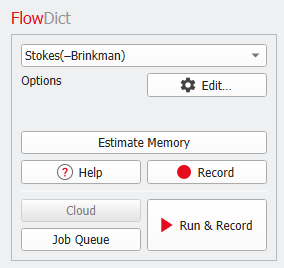
For some modules, the module section includes an Estimate Memory or Estimate Memory & Disk-Space button, that becomes active for the functionalities that support such an estimation. It allows you to estimate the memory (and disk-space) required for the computation before starting the computation.
The button Cloud allows to perform the calculations in the GeoDict Cloud and with Job Queue run the calculation on machines connected in your local network. If interested in cloud simulations or job queueing, contact Math2Market to apply for a GeoDict cloud or job queueing license.
The use of the modules is explained in the sections for each module.
