Image File Formats
You can import single 2D images or complete 3D geometry data consisting of a stack of 2D images in any supported image format using ImportGeo-Vol. The images in a stack form layers in the XY plane. Each image is then one layer in the Z-direction. TIF images in 3D format can also be imported.
To import a single image or a stack of images, select the image or one of the image files from the stack. To import a single image or a stack of images, select the desired image or file. You can also use the pull-down menu in the Select File dialog to select a specific format and only view images with that format.
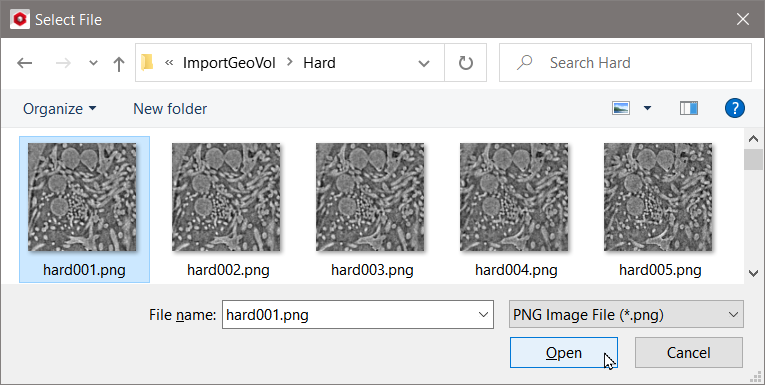
After you click Open, the Geometry Import dialog opens.
The dimensional values in the X and Y-direction are automatically filled in for all image type files, but they can be changed to import only a part of the single image or structure (Crop X, Crop Y). The default Voxel Length must be adjusted to the resolution provided by the person who created the file (typically the person who performed the tomography). All images in a stack must be imported with the same resolution.
Importing a Selection of Files
If you do not want to import all of the images in the selected folder, uncheck Import all Files in Folder. Then, the relative path and name of the image file displays in the Image Name(s) field. Adjust the Image Name(s) and the values for Number First and Number Last.
|
Know how! For the import, the images must be given as a stack of files, with the same file name followed by numerically correlated numbers. |

Checking Import all Files in Folder has the same effect as:
- changing the numbers in Image(s) Name by as many ”#”s as the image number (e.g., 001 = ###) and
- entering the first image and last image numbers for the range of images to load.
Below, the number of imported images is changed using the parameters Number First and Number Last to import:
- a single image file,
- a range of image files, or
- the complete stack of image files.
Then the selection is segmented using the Quick Segmentation.
Click Quick Segmentation to segment the image without image processing or click Image Processing to open the image in the 3D Image Processing dialog.
