Quick Segmentation
Load image datasets with ImportGeo-Vol by clicking Quick Segmentation in the Geometry Import dialog. Quick Segmentation allows you to segment images based solely on the histogram via Global Thresholding. Note that it is not possible to view the image datasets, and there are no options for processing or filtering. Additionally, you will not get a preview of the potential segmentation.
|
Important! For non-binary 3D image scans, it is highly recommended to continue with Image Processing, which also allows you to use the entire range of processing and segmentation capabilities in GeoDict. |

Exemplary Workflow on a Berea Sandstone
The Berea sandstone of Andrä et al., 2013 is used here to describe the workflow using the Quick Segmentation.
In the 3D Image Quick Segmentation dialog, you can manually segment the 3D image via global gray value threshold(s) without opening the 3D Image Processing dialog.
For the segmentation, you first need to define the Number of Thresholds. If the information is available, you can also set the constituent materials for the segmented material phases (e.g., Water and Quartz).
Adjust the gray value Thresholds between the chosen materials by entering a number or moving the slider left and right. The histogram shows the gray values (from 0-255 in case of 8-bit images) on the X-axis and the frequency of corresponding voxels on the Y-axis logarithmically. Typically, peaks indicate different materials. However, often peaks are not easily distinguished from each other. Please see the Image Processing section to learn more about distinguishing materials by filtering 3D images.
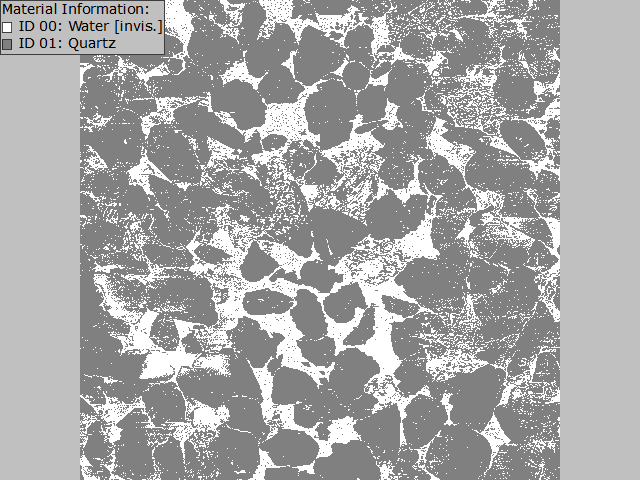
In the 3D Image Quick Segmentation dialog using the example above, pore space and solid fraction can be distinguished with a threshold of 115.5. Then, click Segmentation to segment the image. Then the image dataset is segmented and visualized in the visualization area of the GeoDict GUI.
The 2D view shows Quartz grains and pore space. However, a great amount of noise is visible in the image, meaning that solid voxels are wrongly located in the pore space and vice versa. Thus, this visualization highlights the need for a proper Image Processing. In general, if threshold values are not known a priori, it is recommended to continue with Image Processing instead of clicking Quick Segmentation.
Second Example
In the following, the Quick Segmentation feature is explained on another sample (this is the same dataset as used here). After clicking Quick Segmentation, you can assign the gray values in the image file(s) to Material IDs (and their colors) for visualization in GeoDict. It is possible to set up to 255 thresholds.
Move the threshold value sliders around before segmenting the stack of images and see the Image Segmentation section for more information on thresholding values. After setting the thresholds, click Segmentation to load the cutout specified in the Import Geometry dialog.
