Options
The Analyze Objects dialog opens when clicking the Options’ Edit… button and includes the Object Data and the Analyze Options tabs.
At the top of the dialog, enter a Result File Name.
Object Data
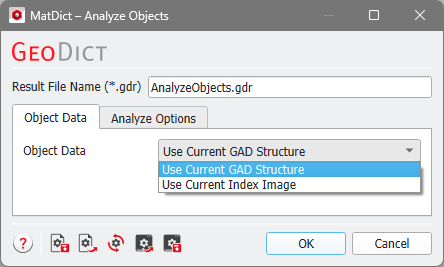
The necessary geometrical information required by the analysis can be taken from two different sources:
Use Current GAD Structure
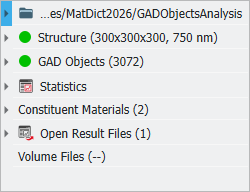
Select this if analytic data is already available in the current 3D structure. If this is the case, a green dot is displayed in the GAD Objects row in the Project Status section, at the left of the GUI.
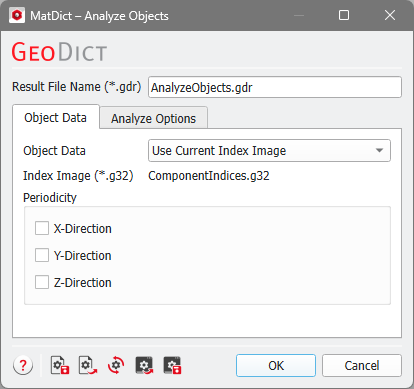
Use Current Index Image
To use this option, a *.g32 file must be loaded as Volume Field. This file type might be the result of object analysis commands in GeoDict, e.g., the Connected Components analysis.
Additionally, you can select the Periodicity of the domain if necessary. This option is not available if the current structure is chosen as source, because the periodicity is saved in the analytic data.
Analyze Options
The content of this tab depends on the selection in the Object Data tab.
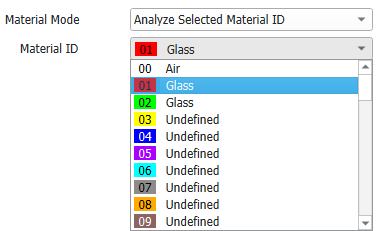
In the Material Mode pull-down menu, choose Analyze All Material IDs to analyze all materials present in the structure, or select Analyze Selected Material ID to analyze only one Material ID which must be chosen from the appearing pull-down menu. This is only available if Use Current GAD Structure is checked as no Material IDs are saved in the Index Images.
When Analyze Object Contact is checked, the number of contacts and the mean coordination number are computed. Additionally, histograms of the contact area and the coordination number are plotted and a *.gdt file with the objects and their contacts is written and saved as Contacts.gdt in the result folder.
When Analyze Object Volume is checked, the volume of each object is computed, and a histogram of all object sizes is created. The parameters in the panel below the checkbox describe the settings for the object volume histogram plot. They can also be changed in the post-processing step and are explained in the Results section.
|
Know how! As the object volume is calculated based on the voxel counts, the result depends on the resolution of the structure. |

If Use Current GAD Structure is selected in the Object Data tab, the following options appear in the Analyze Options tab:
Check Write Object Orientation (*.gof) to save a GeodDict Orientation File (gof) which contains the orientation of the objects and is saved as ObjectOrientation.gof.
Check Write Voxel Geometry with Object Indices (*.g32) or Write Voxel Geometry with Object Indices (*.leS) saves an index image of the objects in the current structure. Choosing these options generates one file in GeoDict’s format in binary format (*.g32) or one file in human readable ASCII format (*.leS).
