Data Visualization
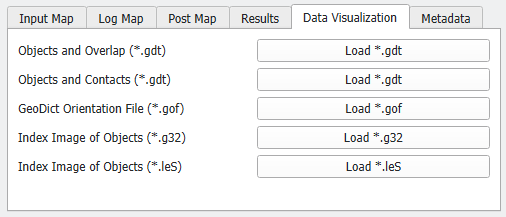
Depending on the input data file type and the options chosen in the input dialog, the Data Visualization tab contains up to 5 files that can be loaded for visualization pupose.
 Objects and Overlap (*.gdt)
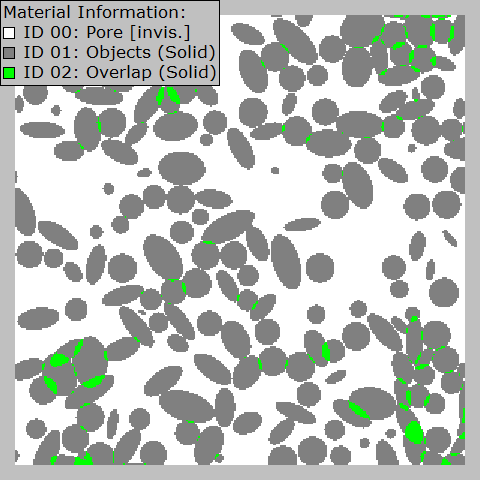
This file is available if Use Current GAD Structure was used as Object Data input. Loading this file shows the overlap between objects. All objects are assigned to Material ID 01 and the overlap is assigned to Material ID 02.
|
Objects and Contacts (*.gdt)
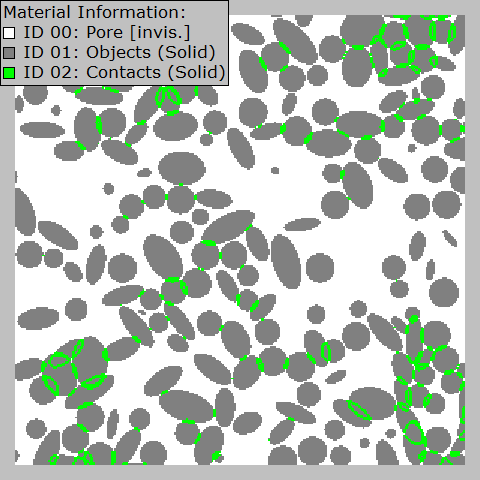
This file is available if Analyze Object Contact was checked in the Analyze Options tab. Loading this file shows the contacts between objects. All objects are assigned to Material ID 01 and the contacts are assigned to Material ID 02.
For the visualization of the labeled contacts only, select Settings → Color & Visibility Settings in the menu bar. Uncheck the visibility of the objects (Material ID 01) in the structure and leave only the visibility of Material ID 02 checked.
|
GeoDict Orientation File (*.gof)
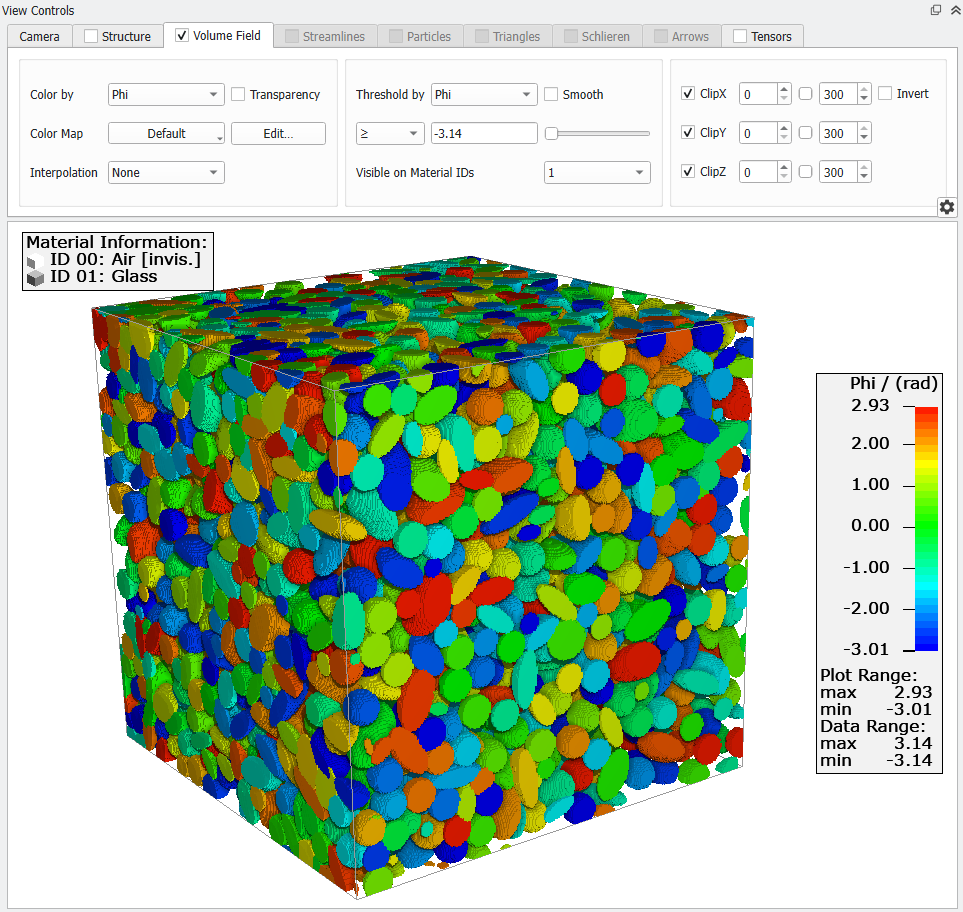
If Write Object Orientation (*.gof) was checked in the Analyze Objects tab, the orientation of the objects can be displayed by loading the orientation volume file.
To properly see the orientation data of each object, uncheck View → Structure in the main menu, and uncheck the Pore material in the Material selector under the Visible on Material IDs menu under the Volume Field tab as shown below.
|
Index Image of Objects (*.g32)
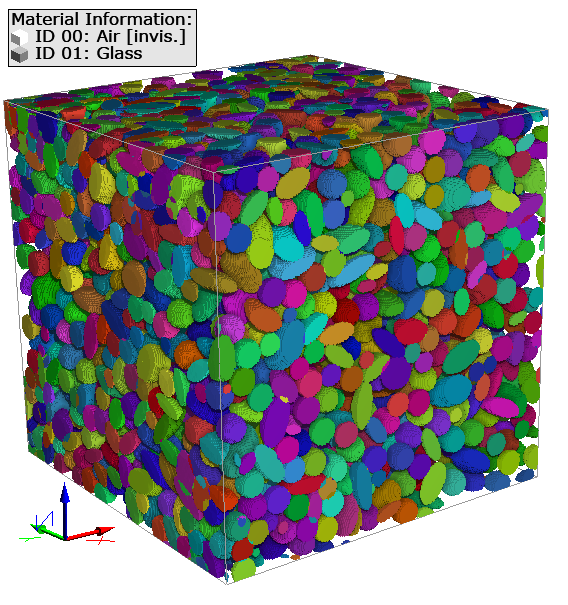
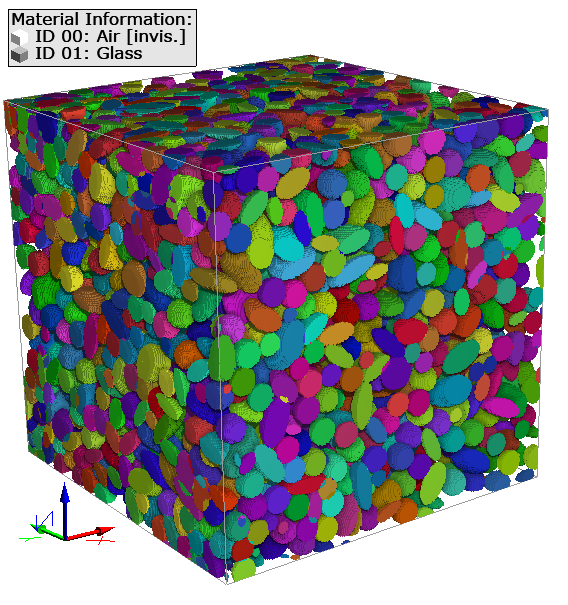
If Write Voxel Geometry with Object Indices (*.g32) was checked in the Analyze Objects tab you can load the index image of the identified objects as *.g32 index image. If the currently loaded index image was chosen as Object Data, the *.g32 can be reloaded after the computation has finished.
In this image, every object is visualized with a different color. Again, to visualize the results, it is important to uncheck View → Structure in the main menu.
|
Index Image of Objects (*.leS)
If Write Voxel Geometry with Object Indices (*.leS) was checked in the Analyze Objects tab you can load the index image of the identified objects as *.leS index image. This format is human readable, e.g., when opening it in an external text editor as Notepad++, but writing this file takes longer than writing a *.g32 file.
In this image, every object is visualized with a different color. Again, to visualize the results, it is important to uncheck View → Structure in the main menu.
|