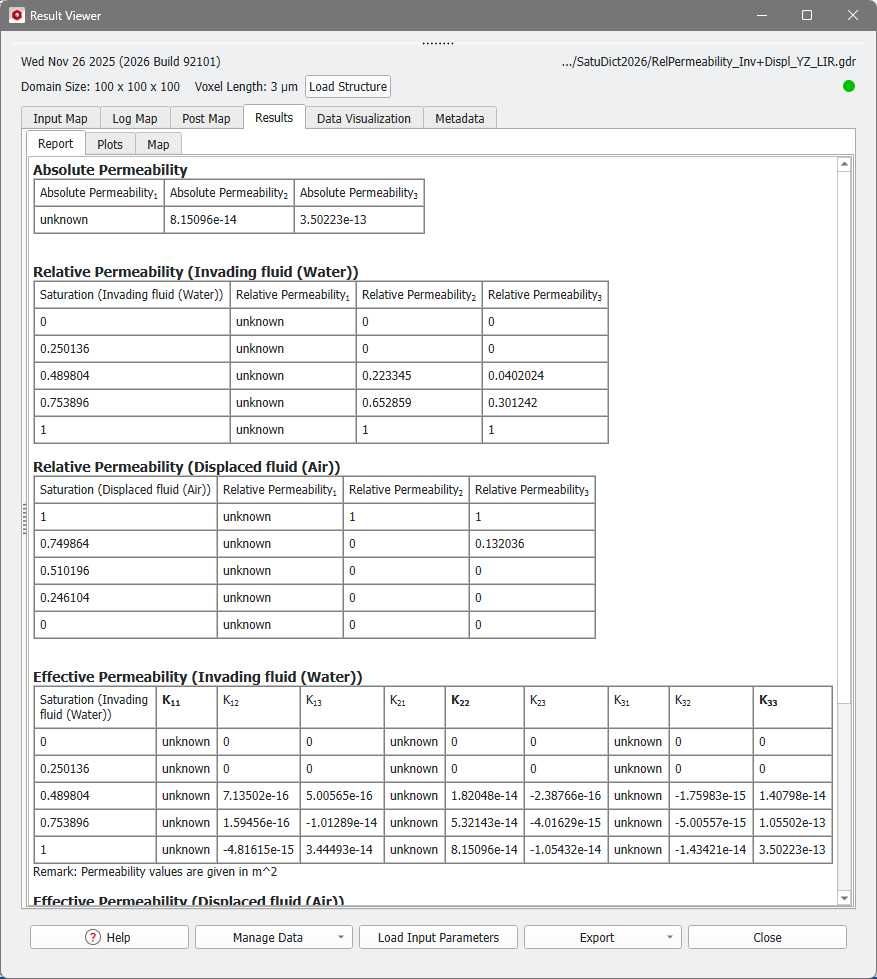
Under the Results-Report sub-tab, the Relative Permeability (dimensionless relative permeability) and Effective Permeability (saturation-dependent permeability) tables are shown for the chosen saturation rates (here, 0, 0.25, 0.50, 0.75, and 1), which are approximated as best as possible (here, 0, 0.250136, 0.489804, 0.753896, and 1).
The Absolute Permeability of the structure is shown at the top. This value is the same as the effective permeability for the fully saturated structure.
For each selected Flow Phase the saturation-dependent relative permeability of the fluid is shown in the tables, where each row stands for one saturation level. The relative permeability values of each direction are given in the corresponding column (1 corresponds to the X-direction, 2 to Y-direction, and 3 to Z-direction). For directions which were not selected as Computational Direction the permeability value is unknown.
Know how! In the example above, the relative permeability at 0% and 25% invading fluid saturation is zero in Z-direction, indicating that before the structure is 49% saturated with the invading fluid, there is no flow path for the invading fluid.
For each selected Flow Phase the saturation-dependent effective permeability of the fluid is shown in the tables, where each row stands for one saturation level. The values of the whole permeability tensor at each saturation step are given in the columns.
In the example above, the entries , , for the computation in Z-direction and , , for the computation in Y-direction are given, the other values are unknown as the computations were not carried out.
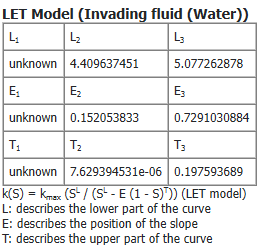
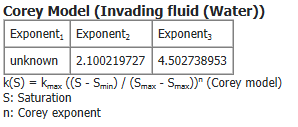
If Show LET Model or Show Corey Model was checked under Fit Options in the Post-Processing Widget, the corresponding tables are shown in the Report tab. There are individual tables for invading and displaced fluid.
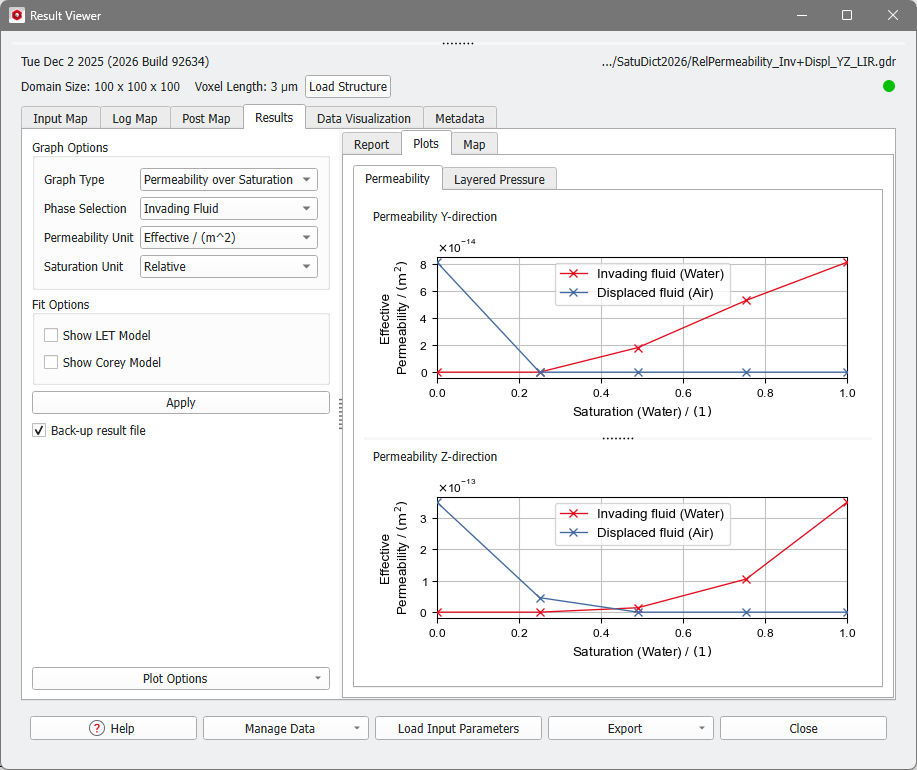
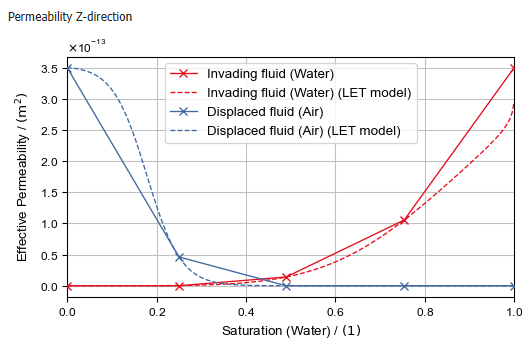
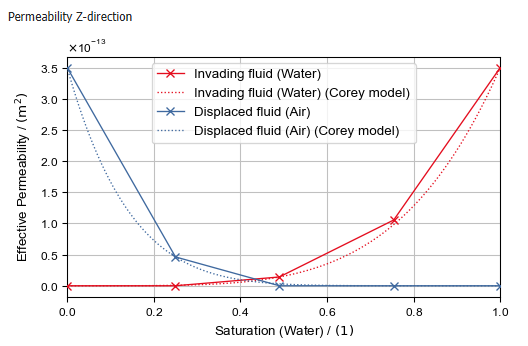
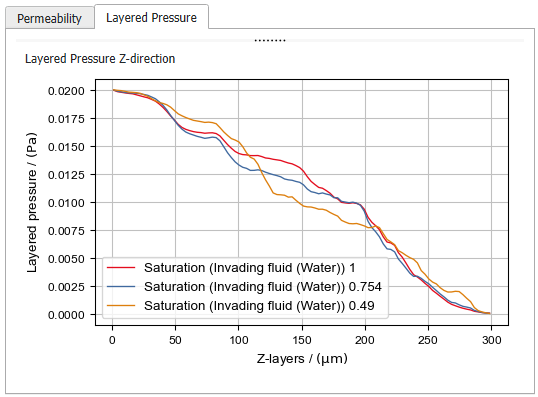
In the Results-Plots subtab, the values of the Relative Permeability or Effective Permeability table are shown in a graph. Also, the Layered Pressure in the computed directions is given.
Permeability Plot
The values of the permeability in all selected Computational Directions and for the selected Flow Phases at the different saturation levels are shown in a graph.
On the left, the Post-Processing Widget allows you to fine-tune the Permeability plot. Collapse the Post-Processing Widget by pulling it to the left.
Check Show LET Model to additionally show an LET fit in the permeability plot. After clicking Apply, the parameters are computed and displayed in the Report tab.
Check Show Corey Model to to additionally show a Corey fit in the permeability plot. The Corey exponent is computed and can be found in the Report tab.
Layered Pressure
In the Layered Pressure tab for each computational direction the pressure in each layer is shown in a graph. The settings made under the Graph Options do not apply for these plots, but the axis settings and graph styles can be changed under Plot Options.