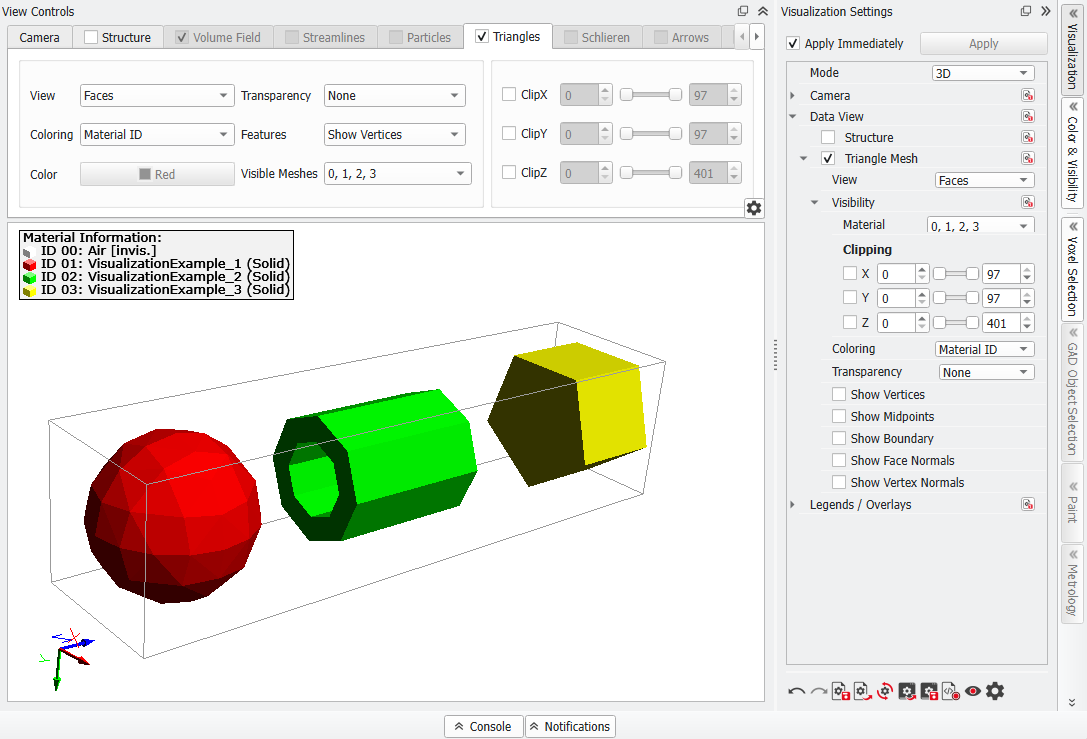
Triangles
For structures with surface triangulation meshes in stl format, e.g., a cylindrical pleat generated with PleatGeo or structures imported with ImportGeo-CAD the Triangles tab becomes available. Modifying the parameters allows to visualize the triangles in different ways.
When visualizing triangulated surfaces, and to observe the difference between the View Mode and Coloring choices, the visualization of the voxelized structure must be switched off by unchecking the Structure tab.
 View
View
Select between different View modes. If setting the view to none, no triangles are shown at all.
|
Coloring
Select between different Coloring schemes.
For the first coloring scheme, fixed color, you can select a desired color for the triangle faces by clicking on the Color button below.
In this example each object ID is a single component. Therefore, in this case the coloring schemes Connected Components and Object ID are identical.
The coloring scheme Material ID depends on the colors chosen in the Color & Visibility Settings for the structure.
|
Features
The Features pull-down menu allows to visualize vertices, midpoints, and face and vertex normals.
|
Transparency
Two different Transparency modes are available, which allow to visualize the inner parts of the structure:
|
Visible Meshes
With the Visible Meshes pull-down menu, the visualization of every imported mesh can individually be switched on and off.
|
Clipping
The triangles can be clipped conforming to their spatial position, in a similar way as explained for the structure clipping.
It is possible to define the range of voxels in each spatial direction that are to be displayed by moving the slider or by direct input of the value.
|