Strain/Stress Visualization
In the Strain/Stress Visualization tab, the computed result fields (*.das) and deformed geometries (*.gdt) of each load step can be loaded into the GeoDict GUI for visualization and postprocessing purpose.

Deformed Geometry
GeoDict stores deformed geometries and volume fields using boxels. While GeoDict generally operates on voxels (cubes), ElastoDict internally uses boxels, which are cuboids with varying side lengths.
ElastoDict saves the boxel structure directly. This is required to support restarting simulations with On Deformed Geometry, as the solver relies on the boxel structure to continue computations. Using boxels ensures that the number of elements remains constant throughout the simulation.
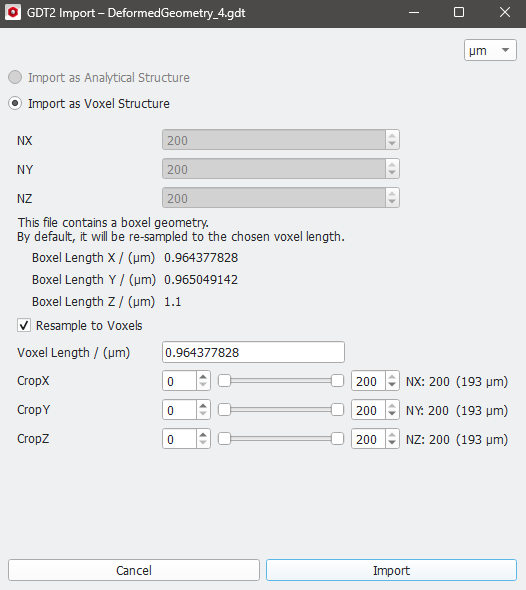
The resampling to a voxel structure is done when the structure is loaded in GeoDict. The smallest boxel side length is selected as the new voxel length (instead of the original voxel length as before). With this choice, more detail can be preserved especially for compression simulations and the structure is shown with more details.
It is also possible to load the structure with the original voxel length (as before in GeoDict 2021 and earlier). For this, the structure has to be imported by selecting File → Import Structure (*.gdt)… in the main GUI. The voxel length for the structure can be defined in Voxel Length / (µm), below the Resample to Voxels checkbox. It is also possible to load the boxel geometry without resampling by unchecking Resample to Voxels.
The values for CropX, CropY and CropZ always correspond to the boxel geometry and do not represent the values of the resampled voxel geometry.
Solution File
Depending on whether the calculation was made on deformed geometry or not (see Geometry Handling) the corresponding *.das file is available and can be loaded for each calculation step. In the example below, Calculate on Deformed Geometry in the Geometry Handling tab was unchecked, and thus only the Solution File (*das) can be loaded.
By clicking on Load (for both solution file options) a selection dialog opens. The result values, which are checked here, are visible in the View Controls – Volume field tab in the GeoDict GUI after the loading step is finished.
This is also the list of available result values which can be used if the Manual option is chosen for the video generation process, see Create Videos. The choice of volume fields has to be made in the Output tab of the Large Deformation Options dialog before running the simulation.
After loading all required components, the visualization settings can be set for these values separately.
Object Index File
The last two options in the Strain/Stress Visualization tab of the Result Viewer are for loading the Object Index File (*.g32). In case the calculations were done on deformed geometry with Enable Object Tracking (*.g32) checked (see Geometry Handling options), the corresponding index file can be loaded.
By clicking on the Load Object File Index (*.g32) button at the bottom of the Stress/Strain Visualization tab the volume field with object indices of the undeformed structure is loaded.
The object indices of the deformed structure can be loaded by choosing Load for Deformed Object Index File (*.g32). A dialog will open with a list of indices to choose. Additionally, the information about the resampling from boxels to a voxel structure procedure is displayed.
Loading the Object Index File results for both cases in a colored representation of the different objects in the Volume Field tab. More information of each object can be viewed in the tooltip dialog.
