Edit GAD Objects
Objects of previously generated structure models in GAD format can be edited after Edit GAD Objects is selected from the upper pull-down menu in the GadGeo section.
Seven commands are selectable in the second pull-down menu in the GadGeo section. The same commands are also available from the GAD Objects’ context menu in the Project Status section located above:
Click the Edit... button to set the options for this change. After setting the options, return to the GadGeo section and click Run to make the changes effective.
|
Important! The Edit GAD Objects commands modify the current structure and no result files are saved. Select File → Save Structure As…, in the menu bar, to save the modified structures in GAD format. |

The Edit GAD Objects commands can only be used if the structure’s objects are analytic and their parameters are known to GeoDict. This is indicated by a green dot in front of GAD Objects in the Project Status section. If a red dot is shown, no analytic information about the objects is available, and the structure is only defined through its voxel grid.
Structure models obtained from segmented 3D images are typically not analytic, and no GAD data is available. Similar, commands like GrainGeo - Grow Sediment or GrainGeo - Add Binder create non-analytic 3D structures.
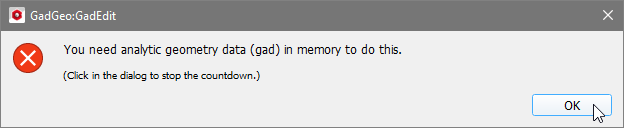
In this case, when you try to change a structure (Scale, Shift, Rotate, and Delete) a warning message appears when clicking the corresponding button and the operation is not performed.
Non-analytic data structures can be edited using the  icon in the Toolbar.
Commands available in the Edit GAD Objects menu |
|---|
|
