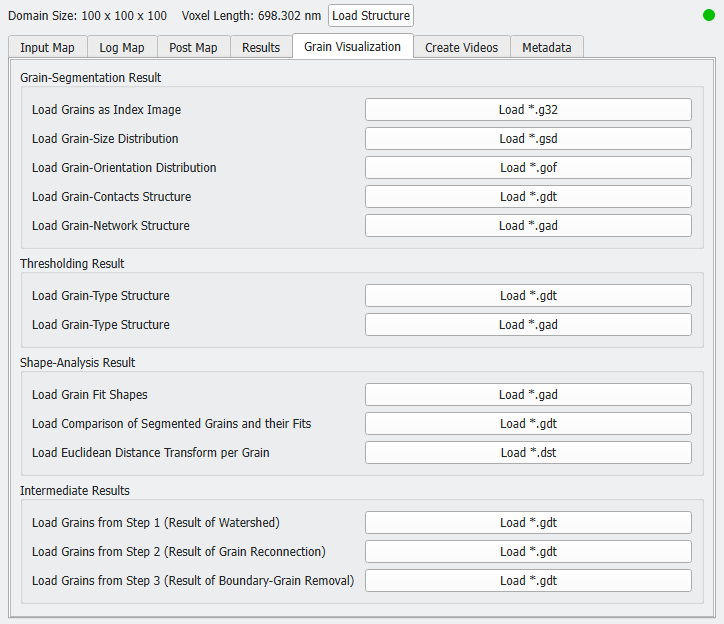
In the Grain Visualization tab you can import saved structures and computed volume fields which illustrate the grain identification process and its results.
Several options are available for the visualization of the different steps of Identify Grains and for the evaluation of the quality of the results. Some options might be unavailable, depending on the previously chosen parameters in the Identify Grains dialog (Output Options tab). The visualization options are grouped into panels.

|
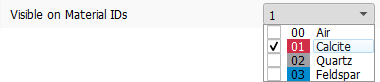
Note! For both the 3D and 2D visualization of the volume fields, reduce the visibility (in the View Controls) to the Material to Analyze (which is Material ID 01 in this example) because most values in the other parts are zero.
|
Grain-Segmentation Result
In the first panel, several options for the analysis of the identified grain shapes are available.
 Load Grains as Index Image
With Load Grains as Index Image, all identified grains are assigned to a unique 32-bit color and can be investigated in the Visualization area. The 2D-view of *.g32 files is particularly suited for visual analysis of the correct segmentation.
|
Load Grain-Size Distribution
This file is only available if Save Grain-Size Distribution (Volume-Equivalent Diameter) as *.gsd has been checked in the Output Options tab and contains by default the Equivalent Diameter field, which is the diameter of a sphere with the same volume as the grain.
If Save Inscribed-Sphere Diameters and Sheppard Sphericities was checked, the *.gsd file additionally contains the fields of the Inner Diameter, which is the diameter of the largest sphere that can be fitted inside the grain.
In the example below, the Boundary-Grain Removal was activated, thus the grains touching the domain boundary have diameter zero as they are excluded from the analysis.
|
Note! When you selected scalar values under GSD Field Choices in the post-processing widget, you can load the created *.gsd file here. Depending on the choices, the file might contain additional or other fields.
|
|
Load Grain-Orientation Distribution
This file is only available if Save Grain-Orientation Distribution as *.gof has been checked in the Output Options tab.
Several fields are saved in this file, e.g., the Euler Angles are available.
|
Load Grain-Contacts Structure
This file is only available if Save Grain-Contacts as *.gdt has been checked in the Output Options tab.
The grains have Material ID 01, while the contacts have Material ID 02.
|
Load Grain-Network Structure
This file is only available if Save Grain-Network Model as *.gad has been checked in the Output Options tab.
The grains (nodes) have Material ID 01, while the connections between them have Material ID 02.
The *.gad file is generated from the fitted shapes. Grains are represented by spheres. The sphere centers are equal to the centers of the fit objects and their diameter equals the Equivalent Diameter (diameter of volume-equivalent sphere). The grain contacts are represented by short cylindrical fibers between the center points of the spheres. The cross-sectional area of the cylinders equals the contact area between the corresponding grains.
|
Thresholding Result
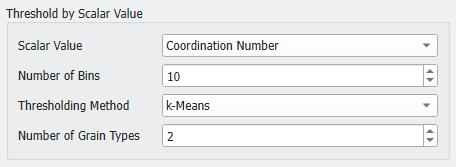
As explained in the previous topic, you can classify the grains by Thresholding a scalar value. For this example the grains are separated by their Coordination Number into grains with only few contacts to other grains (low coordination number) and many contacts to other grains (higher coordination number).
If you change the threshold settings, the grain-type structure will be recomputed.
Load Grain-Type Structure as *gdt
The grain-type structure saved in *.gdt format contains the identified grains with different Material IDs for the different grain types. The grains with a scalar value below the threshold are assigned to Material ID 01 and the grains with a larger scalar value are assigned to Material ID 02.
|
Load Grain-Type Structure as *.gad
The grain-type structure saved in *.gad format contains the fitted shapes with different Material IDs for the different grain types. Again, the grains with a scalar value below the threshold are assigned to Material ID 01 and the grains with a larger scalar value are assigned to Material ID 02.
|
Shape-Analysis Result
Load Grain Fit Shapes
With Load Grain Fit Shapes, load the *.gad file of the fitted shapes for the individual grains.
|
Load Comparison of Segmented Grains and their Fits
To evaluate the performance of the grain identification with the chosen options use Load Comparison of Segmented Grains and their Fits. The identified grains, their best-fit shapes, and their overlap are shown as different Material IDs (Original, Fit, and Overlap). Also have a look at the example in the topic Grain Shape Analysis.
|
Load Euclidean Distance Transform per Grain
This file is only available if Save Euclidean Distance Transform per Grain as *.dst has been checked in the Output Options tab.
During the Identify Grains algorithm, first a Euclidean Distance Transform (EDT) and based on the results of a Watershed transformation are performed. You can load the result of the EDT as volume file by clicking Load *.dst.
|
Intermediate Results
Results from the identification steps are loaded in the Intermediate Results panel.
Load Grains from Step 1 (Result of Watershed)
With Load Grains from Step 1 (Result of Watershed), the segmented grains after the Watershed transform are shown without any post-processing. Depending on the structure and the chosen Minimal Grain Diameter, this step might already be good enough to identify the grains. Otherwise, this option is useful to check the initialization options – mainly if the Minimal Grain Diameter was chosen correctly for the analyzed grains.
|
Load Grains from Step 2 (Result of Grain Reconnection)
This file is only available if Reconnect Fragmented Grains has been checked in the Grain Segmentation tab.
By clicking Load Grains from Step 2 (Result of Grain Reconnection), the grains after the Grain-Fragment Reconnection are loaded in GeoDict. This way it can be assessed whether the chosen value for Interface Threshold suits the analyzed grains.
|
Load Grains from Step 3 (Result of Boundary-Grain Removal)
This file is only available if Remove Grain Fragments at Domain Boundary has been checked in the Grain Segmentation tab.
Click Load Grains from Step 3 (Result of Boundary-Grain Removal) to import the identified grains resulting from the removal of grain fragments at the domain boundary. This will be the basis structure for the fitting of the fit objects.
|