|
Navigation: GeoDict 2026 - User Guide > Image Analysis > GrainFind > Identify Grains > Results |
Scroll |
Plots
The Plots tab offers several plots to show the relationship between grain parameters: Scatter Plot, Threshold by scalar value histogram, Volume histogram, Diameters histogram, Perimeter histogram, Sphericities histogram, Aspect ratio histogram, Surfaces And Contacts histogram, Mass histogram, Moment of Inertia histogram, Coordination Number histogram, the Orientation polar plot, and the Reconnection Indicators histogram.
Change the plot options in the post-processing widget at the left side of the Plots tab. After changes are made, click Apply… to use the new values. The changes are also applied to the tables under the Report subtab.
In the Scatter Plot panel, you can choose two scalar values to be plotted against each other. By default, the Krumbein Sphericity is plotted against the Equivalent Diameters. 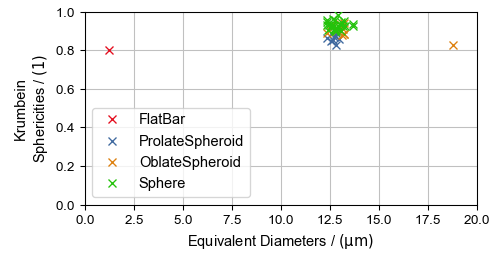 You can change the scalar values in the post-processing widget. The different scalar values are explained in Results of Identify Grains. 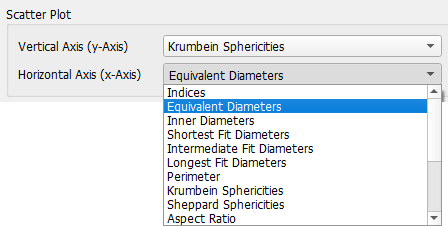 The Scatter Plot distinguishes between the four shapes of each object type (Ellipsoids, Short Elliptical Fibers, and Boxes) that are fitted into the grains (see also Grain Shape Analysis for more information). In the example above, observe in the Scatter Plot that all identified grains in the structure are nearly spherical (Krumbein Sphericities close to 1). Nearly all grains have an equivalent diameter around 12.5 µm, except of two outliers. |
You can classify the grains in the structure into different types based on a chosen scalar value. Define the parameters in the Post-Processing Widget and control the performance in the Threshold by scalar value plot.  First, select the Scalar Value from the drop-down list to determine a threshold for. The default scalar value is Volume. All scalar values are described under Results of Identify Grains. The Number of Bins defines how many bins the histogram Threshold by scalar value has. With more bins, a more precise threshold value can be found. To determine the threshold value, three Thresholding Methods are available: 
 After the settings are applied, the Threshold by scalar value plot visualizes the effects. The histogram of the chosen Scalar Value is plotted with the entered Number of Bins. The computed or entered Thresholds are marked as well as the Gauss fit of the grain types. Additionally, a structure containing the different grain types will be created, that can be loaded into GeoDict from the Grain Visualization tab. In the example, the grains are separated by their Coordination Number into grains with only few contacts to other grains (low coordination number) and many contacts to other grains (higher coordination number). 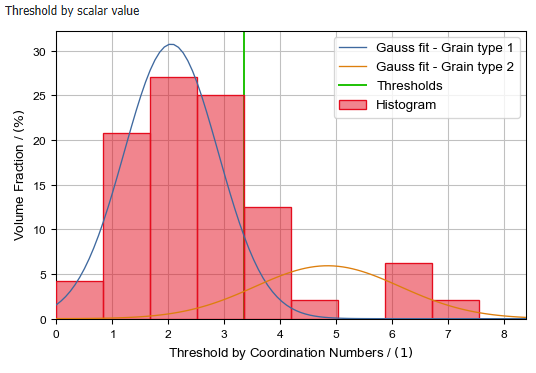 |
In this tab, the Volume of the identified grains is plotted. The Histogram Plot Options are explained below. 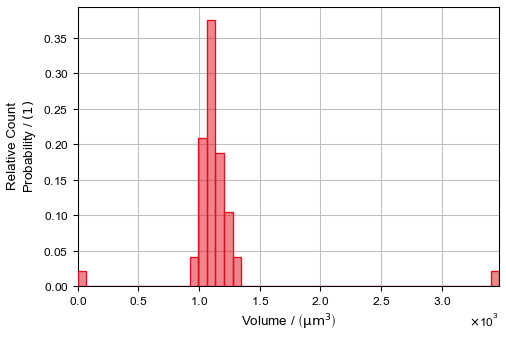 |
In the Diameters panel you can switch between different plots.  The Diameter of Inscribed Spheres histogram is only available if Save Inscribed-Sphere Diameters and Sheppard Sphericities was checked in the Output Options tab. The Histogram Plot Options are explained below.  |
In this tab, the Perimeter of the identified grains is plotted. The Histogram Plot Options are explained below. 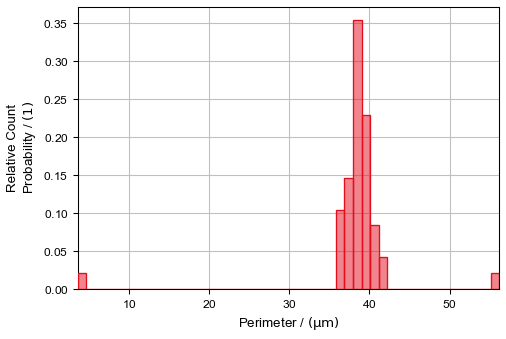 |
The Krumbein Sphericity and the Sheppard Sphericity (only if Save Inscribed-Sphere Diameters and Sheppard Sphericities was checked in the Output Options tab) are shown in this tab. The Histogram Plot Options are explained below.  |
In this tab, the Aspect Ratio of the identified grains is plotted. The Histogram Plot Options are explained below.  |
 Surfaces And Contacts histogram
In the Surfaces and Contacts panel you can switch between different plots.
The Histogram Plot Options are explained below. 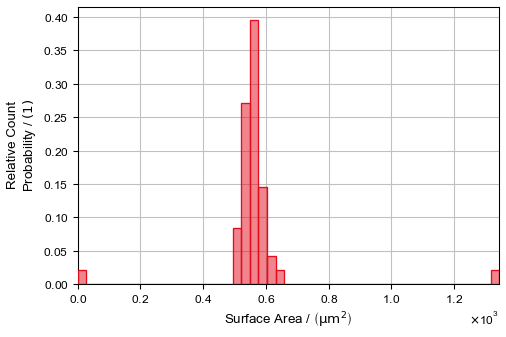 |
In this tab, the Mass histogram of the identified grains is plotted. The Histogram Plot Options are explained below.  |
In this tab, the Moment of Inertia histogram of the identified grains is plotted. The Histogram Plot Options are explained below.
|

In this tab, the Coordination Number (number of contacts a grain has to other grains) of the identified grains is plotted. The Histogram Plot Options are explained below. 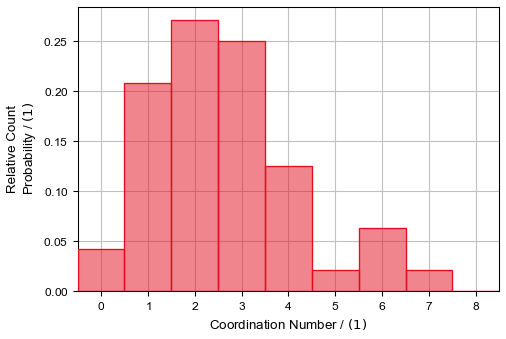 |
In this tab, the orientation of the fitted grain shapes is plotted as polar plot. This plot distinguishes between the four shapes of each object type (Ellipsoids, Short Elliptical Fibers, and Boxes) that are fitted into the grains (see also Grain Shape Analysis for more information). 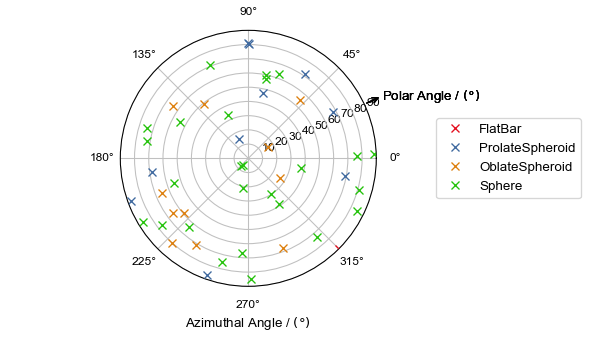 |
Use the Reconnection Indicators histogram to find an appropriate Reconnection Threshold if you want to use Grain-Fragment Reconnection (find more information in this topic). 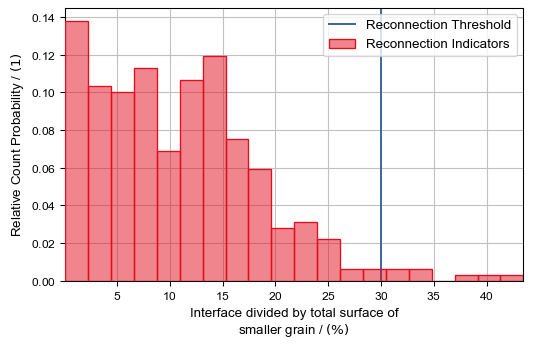 |
You can modify the histogram plots with the Histogram Plot options in the post-processing widget. 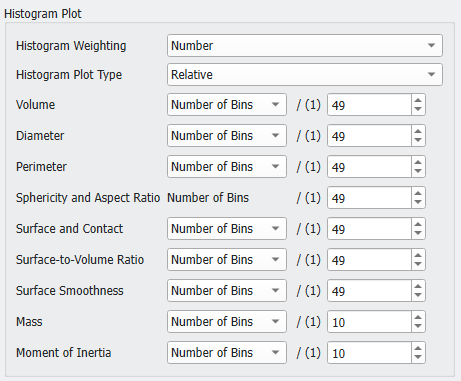 The values on the Y-axes of the histograms in all plots can show Count Probability (weighting by Number), Area Probability (weighting by Surface), or Volume Probability (weighting by Volume), depending on the Histogram Weighting you choose. For the Area Probability (weighting by Surface) the surface area of each segmented grain is computed using the same algorithm as in Estimate Surface Area (MatDict) command and then weighting the grains by that value. The computed surface area does also include the surface between different grains, not only the area between grain and pore material.  Set the Histogram Plot Type to Relative to compare the individual proportions, or to Cumulative to show the accumulation over the data range.  The example on the left-hand side shows, that the smallest grains make up around 20% of the total grain volume. Compared to the weighting with numbers, around 10% of the grains belong to the smallest grains in the structure. You can customize the bin size for different histogram plots individually. In general, you can choose between:
As the different histogram plots show different results, only those choices are available which make sense for the corresponding plot. 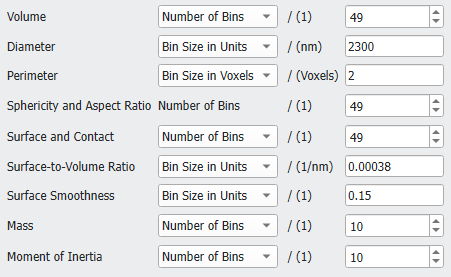 The bin size can correspond to one single plot or multiple plots are changed at once:
|
©2026 created by Math2Market GmbH / Imprint / Privacy Policy
