Output Options
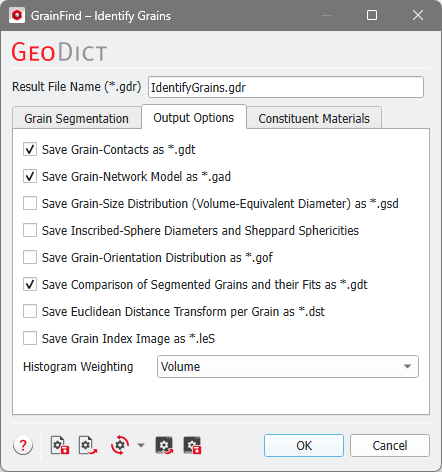
Under the Output Options tab, choose which additional results should be computed and saved. Load the files for visualization in the Result Viewer under the Grain Visualization tab. Some of these options need an additional computing effort and are unchecked by default. Shown below is the default selection of the output options for the Standard Edition.
|
Note! The following files are always saved as Output, independent of the selection in this tab:
|

- Check Save Grain-Contacts as *.gdt to save a structure file, where the grains have Material ID 01 and the contact areas have Material ID 02.
- The option Save Grain-Network Model as *.gad is selected by default and creates a file containing analytic objects to represent the network. The grains are represented by spheres (Material ID 01) and the connections between them are modeled by cylinders (Material ID 02).
- Check Save Grain-Size Distribution (Volume-Equivalent Diameter) as *.gsd to save the computed grain size distribution as a volume field. This information can be used, e.g., for visualization of the volume field of the Volume-Equivalent Diameter or for further analysis with Python.
|
Know how! You can modify the fields of the volume file after the computation in the post-processing widget in the Result Viewer. |

- When Save Inscribed-Sphere Diameters and Sheppard Sphericities is checked, the diameter of the inscribed sphere for every grain is calculated as volume field and saved. The Sheppard sphericity is computed according to 41. Both options need additional computing effort and are unchecked by default.
- Check Save Grain-Orientation Distribution as *.gof to save the orientation of the pores in a volume field and use the orientation information in simulations or for later analysis. For example, when predicting mechanical properties with ElastoDict, anisotropic material properties can be assigned depending on the grain orientation.
- By default selected is to Save Comparison of Segmented Grains and their Fits as *.gdt, which is useful to evaluate the quality of the Grain-Fit Shapes (Ellipsoids, Short Elliptical Fibers, or Boxes). A good accordance of the grain fit shapes and the identified grains is important as a basis for generating good digital twins with GrainGeo Create – Load GrainFind Result.
- After checking Save Euclidean Distance Transform per Grain as *.dst, the EDT for every grain is calculated individually and the result is saved in one single file (*.dst format). This option needs additional computing effort and is unchecked by default.
- The resulting grain index image is saved by default in the binary *.g32 format. With the last option, Save Grain Index Image as *.leS, it can be additionally saved as an ASCII file. This format takes more space and needs longer to write and load into GeoDict, but it is human-readable and can easily be imported into other software.
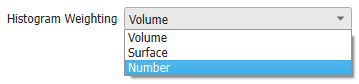
Choosing Histogram Weighting as Volume, Surface, or Number changes the values on the Y-axis of the resulting histogram plots. Then, either the grain volume probability, the grain surface area probability, or the grain count probability is shown. The histogram weighting can also be changed in the Histogram Plot Options in the Result Viewer after the analysis has been run.