Object Materials
Select Materials
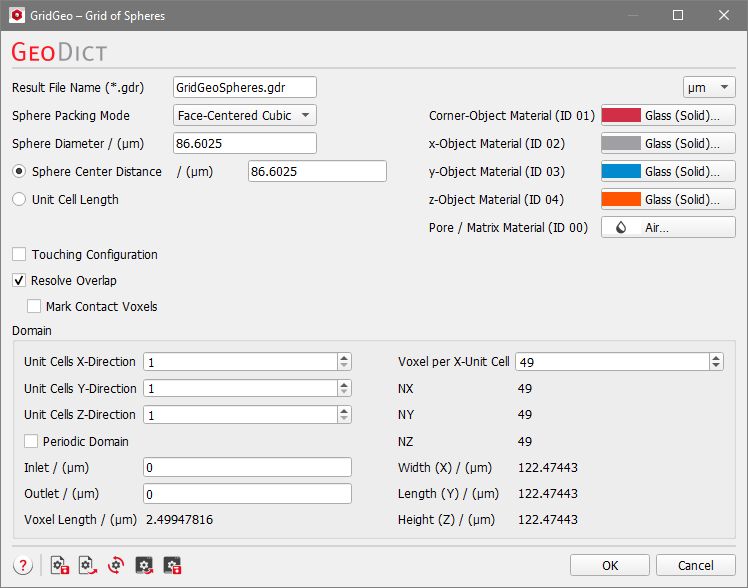
The materials for the spheres and the pore space in the grid can be chosen according to your needs.
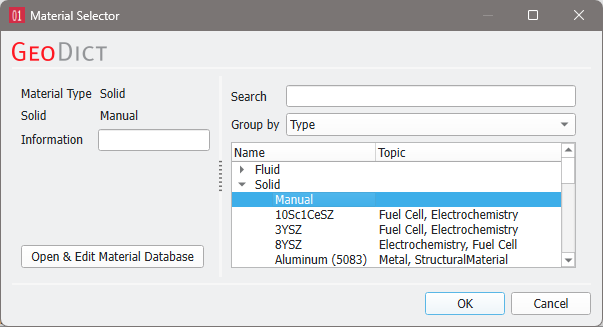
The pull-down menu gives access to selecting the desired material from the GeoDict Material Database. When none of the materials available in the database fit the preferred specifications, Manual should be chosen. Alternatively, a new material with the desired specifications can be added to the Material Database (see the Material Database chapter).
To match realistic material colors for visualization in a certain application, the default material colors can be changed through the Color & Visibility tab of the GUI sidebar. For more visualization options, see the Visualization chapter.
Overlap Behavior
In the generated grid, overlap between the spheres might occur, e.g., if the chosen sphere diameter is larger than the sphere center distance. This overlap can be handled in different ways.
By default, Resolve Overlap is enabled. With this option, the overlapping regions are assigned to the materials of the spheres which are in contact. This leads to a more realistic structure.

Additionally checking Mark Contact Voxels allows to define a separate material for the contact areas. This means, for each overlapping object a one voxel thick layer is reassigned to the Contact Material. In this way, even contacting spheres with the same material ID can be clearly distinguished.
|
Know how! Using Resolve Overlap needs more time to compute, therefore we recommend disabling this option for large structures where the information about the overlap is not relevant (e.g., for flow simulations). |

Alternatively, an Overlap Material can be selected for the regions where spheres overlap.

The following example of a face-centered-cubic grid, where the spheres have a diameter of 110 µm and the sphere centers have a distance of 100 µm, illustrates how the different options for the overlap behavior affect the structure.
