|
Navigation: GeoDict 2026 - User Guide > Introduction > Graphical User Interface > Menu Bar > File |
Scroll |
→Manage Files and Folders
Select Open Structure (*.gdt, *.gad)… to browse for a saved structure file and open it. The file can be in GDT format (GeoDict compressed format), in GAD format (GeoDict analytic data) or in an index image format (*.leS or *.g32). The Select File dialog opens in the currently selected project folder, but you can also navigate to other project folders you have created. Loading a *.leS or *.g32 file with Open Structure imports the file as a structure in GeoDict, assigning the indices to the 256 Material IDs. First, the index 0 is assigned to ID00. Then, the other indices are assigned to the other 255 IDs equally. That means, index 01 gets ID 01, index 02 gets ID 2 and so on till index 255 gets ID 255. If more than 256 indices are contained in the *.g32, then the IDs are assigned again starting with ID 01 for index 256. Loading such files with File → Load Volume File instead, loads it as an index image. The toolbar icon |
 is the shortcut to open structure files.
 Import Structure (*.gdt, *.gad)
With Import Structure (*.gdt, *.gad)… files in GDT and GAD format can be loaded into GeoDict. In contrast to Open Structure, after selecting a file to open, the Import Structure dialog offers several options, such as changing the voxel length and cropping the structure. For a GDT file which contains analytical information of the microstructure, you can decide to Import the structure as Analytical Structure or to only Import as Voxel Structure. For GAD files, only the Import as Analytical Structure is selectable. Importing as analytical structure allows, e.g., to change the origin or to rotate the structure. The options are explained in more detail in the Import GAD data section of the GadGeo chapter. If Import as Voxel Structure is checked, the original values of NX, NY, NZ are shown, but cannot be edited. The Voxel Length can be changed and has no impact on the number of voxels, only the physical size is changed. Select the unit for the voxel length from the pull-down menu in the upper right corner of the dialog. A sub-region to load can be set by adjusting the sliders for CropX, CropY, and CropZ or entering the exact voxel number in the corresponding boxes. The resulting size in the corresponding direction is shown on the right in number of voxels and length in units. 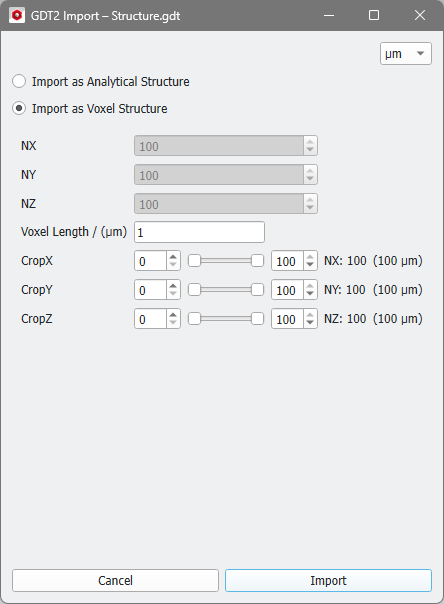 |
Select Open Results (*.gdr)… to open and load result files in GDR format (GeoDict results), obtained, e.g., from a previous run of a GeoDict solver or structure generator into the Result Viewer. Browse for the file to load in the Select file dialog, which opens in the current project folder. The toolbar icon |
 is the shortcut to open results.
Clean-Up / Pack Results (*.gdr)
Select Clean-Up / Pack Results (*.gdr)… to delete or compress additional files that are saved in the result folder of the chosen result file. This functionality is also available in the Result Viewer under Manage Data in the bottom section and described there. |
Select Load Volume File… to open volume files and visualize the contained volume fields, e.g., *.vap files (velocity and pressure fields). You can open and load result files for visualization in numerous formats. 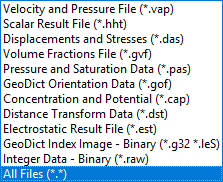 The toolbar icon In the opening Loading volume file dialog, select the volume fields you want to load. Supplemental fields, as, e.g., the Velocity:Velocity field shown in the dialog, will be computed from the saved fields in the file. Selecting Allow Clipping by Distance also computes a distance field using a signed Euclidean distance transform (see the MatDict-EDT chapter for more information). The distances can then be used to threshold the other loaded volume fields. A compressed field is saved when checking Write Compressed Volume Fields under the Solver tab of the LIR Solver Options dialog. If a compressed volume field is opened, it is possible to choose either Decompress to Regular Grid (which is the recommended option) or Keep Adaptive Grid, which means to load the field in compressed form.
It is also possible to load a volume file in compressed form and decompress it later. In the project status section on the left, right click on the volume image and choose Decompress. 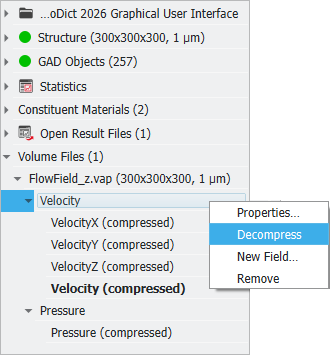 Check Keep existing Volume Fields, if already loaded volume fields should be kept in the GeoDict memory. With the buttons Check all and Uncheck all, the fields from the volume file you want to load can be selected or deselected at once. In the View File Header tab you can see the header of the volume file. The header provides information about the domain size, voxel length, boundary conditions, and many more. Nothing can be edited in this tab, only the available information, depending on the volume file type, is shown. 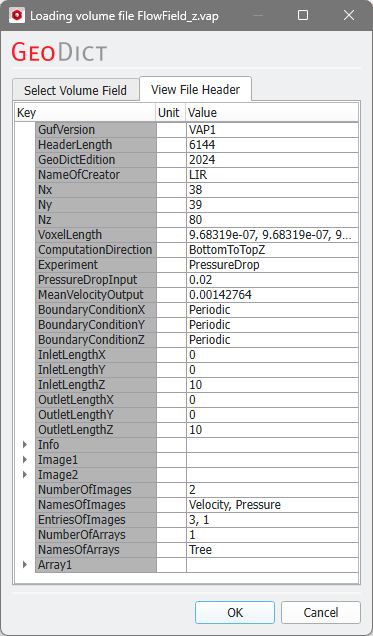
Clicking OK starts the import of the volume file. |
 is the shortcut to load volume files.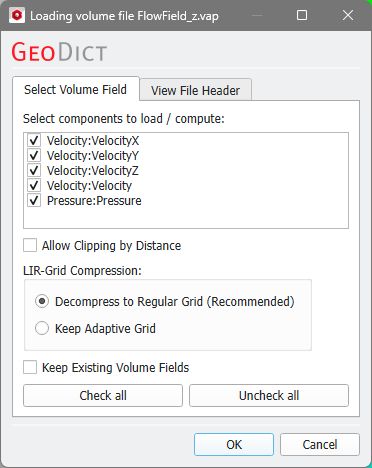


Select Load Particles… to open and visualize particle trajectories and particle positions for FilterDict or AddiDict simulations (*.gpt and *.gpp files). This option is only available if a structure is currently loaded into GeoDict. |
Select Open Recent File… to choose a file from the list of the last opened GDR, GDT, and GAD files. This list of files opened or created in the last GeoDict session is also shown in the Recent Files section when no structure is loaded.
|
For Choose Project Folder a sub-menu opens when hovering above.  The toolbar icon Click Select Project Folder… to open the Choose Project Folder dialog. Find the path to a previously created and already listed project folder, or right-click in the dialog to create a new project folder to save the results and settings files produced with GeoDict. Under Options… to set up how the project folder is selected at the start of GeoDict. Either the Last Project Folder, or a Fixed Project Folder can be selected. 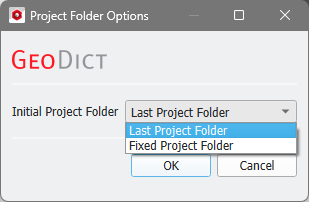 Click Open Project Folder… to open the currently selected project folder with the Windows Explorer or the Linux file manager. Below, if available, the last project folders are listed as it is done in the Recent Project Folder section. The project folder will contain the files with the generated structures and the result files from the solvers’ computations. You can choose any folder on your disk space as project folder.
|
 is the shortcut to the Choose Project Folder sub-menu.
©2026 created by Math2Market GmbH / Imprint / Privacy Policy
