Options
The Mercury Porosimetry & Capillary Pressure dialog opens when clicking the Edit… button and includes the Experiment Options tab and the Equations & References tab, which cites several references.
At the top of the dialog, enter the Result File Name. The result file is saved in the chosen project folder (File → Choose Project Folder in the menu bar).
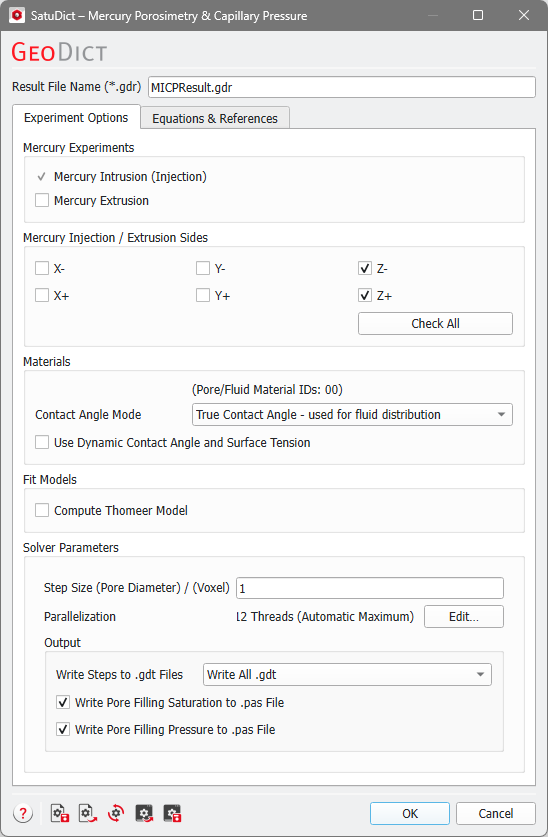
Mercury Experiments
The option Mercury Injection is always selected and cannot be unchecked. You can additionally choose to compute also the Mercury Extrusion.
Mercury Injection / Extrusion Sides
Similar to the Boundary Conditions in Capillary Pressure Curve, you have to choose from which domain sides the mercury can enter the structure and leave the structure if Mercury Extrusion is computed.
For ease of use you can click on the button Check All if the mercury can intrude from all sides.
|
Note! In Contrast to the Capillary Pressure Curve command, you cannot chose a domain side to be the displaced fluid outlet because no residual remains in the structure. |

Materials
The shown Material IDs are the pores that will be filled with mercury during the simulation.
Below, you choose the Contact Angle Mode used for the distribution of the mercury and the computation of the capillary pressure. The same options as for the Capillary Pressure Curve are available, but an angle of 140° for the invading fluid is assumed for all solid materials.
With Use Dynamic Contact Angle and Surface Tension the assumed contact angle is not fixed anymore. Based on Rigby and Edler (2002) it is assumed that contact angle and surface tension vary with pore size and the contact angle additionally depends on whether mercury is advancing or retreating.
According to Kloubek, the product in the Young-Laplace equation is replaced by:
|
Note! This is only valid for pore radii between 4 nm and 100 nm. |
Fit Models
Select if you want to compute the Thomeer Model based on the computed capillary pressure curves. The Thomeer Model can also be computed afterwards as post-processing step in the Result Viewer.
Solver Parameters
Step Size (Pore Diameter / Voxel)
The algorithm increases or decreases the sphere diameter (and thus changes the capillary pressure) from step to step by this amount. Small values increase the accuracy of the result but lead to longer calculation times. The same option is also available in the Capillary Pressure Curve command.
|
Note! The value for the step size is allowed to be smaller than 1. |
Parallelization
Control how many threads are used for the computation. Parallelization is possible if your license and hardware allow it.
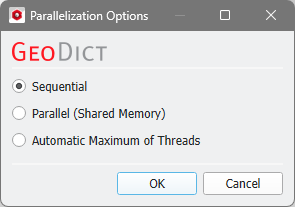
The Parallelization Options dialog opens when clicking the Edit button and you can choose between Sequential, Parallel (Shared Memory), or Automatic Maximum of Threads.

Selecting Sequential will not apply parallelization and only one thread is used for the computation.
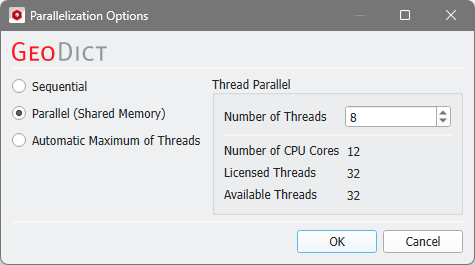
When Parallel (Shared Memory) is selected, the Number of Threads can be entered. Below, the Number of CPU Cores that the current machine has, the maximum number of Licensed Threads and the number of those licensed threads that are available (Available Threads) are shown in the dialog. Of course, the maximal number of parallel processes you can use, is the smallest of those three numbers.
If Automatic Maximum of Threads is selected, the number of parallel processes is automatically selected for optimal speed, based on the CPU cores and licensed parallel processes.
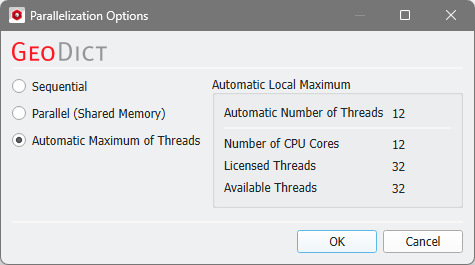
The Automatic Local Maximum of processes is automatically selected, which is the minimum of Number of CPU Cores, Licensed Threads, and Available Threads.
Output
The same options as for the Solver Parameters in Capillary Pressure Curve are available. The saved result files can be loaded from the Data Visualization tab in the result viewer.
