|
Navigation: GeoDict 2026 - User Guide > Simulation & Prediction > DiffuDict > Simulate Diffusion Experiment > Options |
Scroll |
Solver
The Laplace equation can be solved by two different solvers: EJ and LIR. When transverse isotropic or orthotropic effective diffusivities are selected in the Constituent Materials tab, the LIR must be used.
EJ Solver
Select one or multiple of the stopping criteria Tolerance, Residual, Maximal Iterations or Maximal Run Time.  The default stopping criterion of the EJ solver, Tolerance, detects if the iterative process becomes stationary. This occurs when the change in the Diffusivity value from iteration to iteration becomes sufficiently small. If the relative change is smaller than the value entered for Tolerance, the iteration is stopped: Alternatively, the Residual stopping criterion can be used. In this case, the iteration is stopped, if the solution satisfies the equation up to the required accuracy. When the solver stops because the Maximal Iterations value or Maximal Run Time has been reached, no guarantee on the quality of solution can be given. In this case:
Which stopping criterion has occurred, can be seen in the result file under the Results Report tab. |

The calculations run by the solvers can be restarted from saved intermediate result files and the interval between auto-saves can be configured from the value entered in Restart Save Interval (h). |
Depending on the purchased license, the simulation process can be parallelized. The Parallelization Options dialog box opens when clicking the Edit... button, to choose between Sequential, Parallel (Shared Memory), Automatic Number of Threads and Cluster. For details on how to set up and run parallel computations, consult the High Performance Computing chapter. |
In some situations, it may be useful to re-use previously computed results and save a great amount of time by restarting the process from an existing GeoDict result file (*.gdr). Typical examples would be
To restart and initialize the solver from a result file (*.gdr), check Restart from .gdr File and enter the name of a file, or Browse for it in the project folder. When using Restart From .gdr File only the volume field (*.hht file) associated to the loaded *.gdr file will be used to continue the simulation.
No other parameters from the options dialog will be loaded from the *.gdr file, but it is possible to load them by clicking Load Parameters in the Result Viewer. This way the simulation can be continued while using the same settings as in the initial simulation.
|

Checking Discard PDE Solver Files causes the deletion of all intermediate computation files, such as log files and flow field files.  Only the content of the final GeoDict result file (*.gdr) is stored. While having the benefit of saving hard disk storage place, discarding intermediate solver files has also the effect of disabling the 3D visualization of the results. |
 Write Diffusion Flux into Solution File
Additional 3D data can be added to the solution *.hht files for visualization or later analysis. With Write Diffusion Flux into Solution File the Diffusion Flux in the three coordinate directions is saved, allowing a detailed analysis of the field. The size of the result files and the memory requirements increase when selecting this option. |
Advanced Options: Analyze Geometry
Checking Analyze Geometry performs an analysis of the geometry before the solver computations.  If no percolation path through the structure is found, the partial differential equation does not need to be solved, and a diffusivity of 0.0 is directly reported as the solution. Furthermore, the solver operates on the whole structure, regardless of which parts are connected or unconnected. However, unconnected components are not transport relevant, thus the effort of solving in these parts is not necessary. For these reasons, a geometrical analysis is routinely run to determine whether a through path exists. After the analysis is finished, unconnected components are removed from the computational grid. This may speed up the computations but requires some time for the geometrical analysis, especially for very large structures. So if you know beforehand that there are no unrelevant parts or that the structure has been processed to eliminate them, the geometry analysis can be switched off by unchecking Analyze Geometry. |
LIR Solver
The default stopping criterion of the LIR solver, Error Bound, uses the result of previous iterations and predicts the final solution based on linear and quadratic extrapolation. The solver stops if the relative difference regarding the prediction is smaller than the specified error bound. The stopping criterion recognizes oscillations in the convergence behavior and prevents premature stopping at local minima or maxima. A damped convergence curve is fit through the oscillating curve and the solver stops then regarding the damped convergence curve. 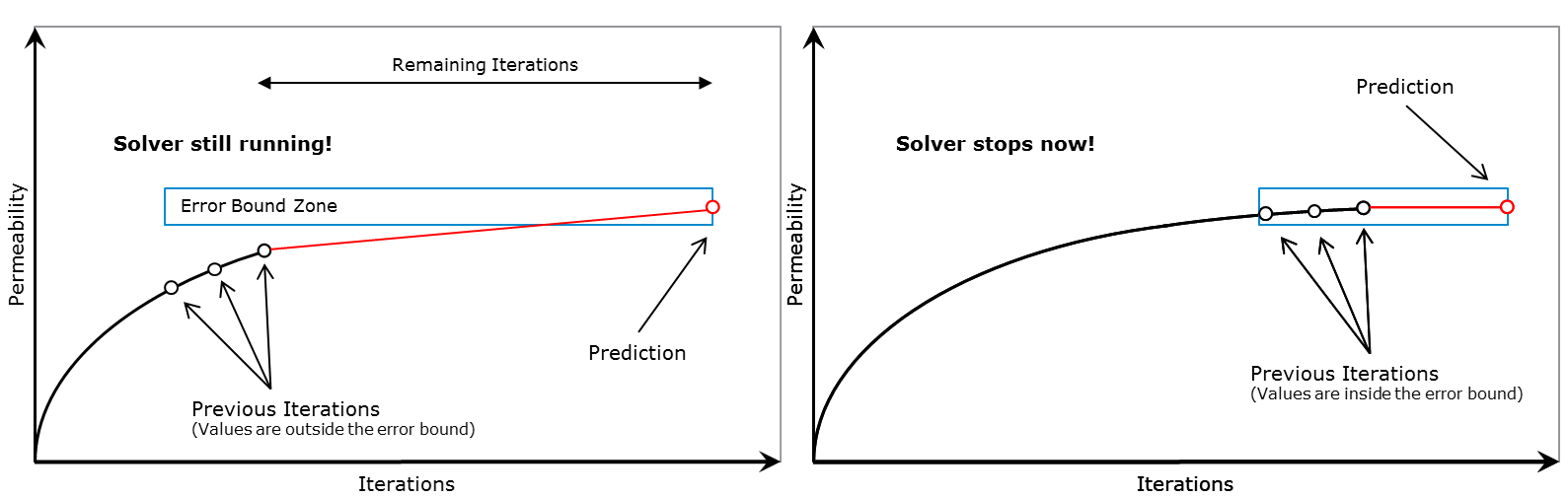 The stopping criteria Tolerance, Maximal Iterations and Maximal Run Time work as described for the EJ solver.  |
The options are the same as for the EJ solver and a description can be found above. |
Depending on the purchased license, the simulation process can be parallelized. The Parallelization Options dialog box opens when clicking the Edit... button, to choose between Sequential, Parallel (Shared Memory) and Automatic Number of Threads. For details on how to set up und run parallel computations, consult the High Performance Computations chapter.
|

If one of the constituent materials has a non-isotropic material law, a local orientation is needed to compute the diffusivity. There are three different choices how to determine the local orientation. The standard case is to use the orientation defined by the local orientation of the GAD objects, e.g., the direction of a fiber (Use Orientation from Analytic Objects (gad)).  However, if the current structure was not generated using one of the structure generation modules, but imported from a 3D scan, GAD object information is not available. In such a case, the local orientation must be estimated from the image first, e.g., by using FiberFind or GrainFind. It is then possible to load the local orientation from a file generated by one of those modules, by selecting Load Orientation Information from File (*.gof). The last option is to simply Use the Global XYZ-Coordinate System.  In this case, the diffusivities entered in the Constituent Materials tab are the diffusivities in the X-, Y-, and Z-directions. |
For the LIR solver, more settings are hidden under Advanced Options. Expand it to make them visible.
Advanced Options: Analyze Geometry
Checking Analyze Geometry performs an analysis of the geometry before the solver computations. If no percolation path through the structure is found, the partial differential equation does not need to be solved, and a diffusivity of 0.0 is directly reported as the solution. Furthermore, the solver operates on the whole structure, regardless of which parts are connected or unconnected. However, unconnected components are not transport relevant, thus the effort of solving in these parts is not necessary. For these reasons, a geometrical analysis is routinely run to determine whether a through path exists. After the analysis is finished, unconnected components are removed from the computational grid. This may speed up the computations but requires some time for the geometrical analysis, especially for very large structures. So if you know beforehand that there are no unrelevant parts or that the structure has been processed to eliminate them, the geometry analysis can be switched off by unchecking Analyze Geometry. |
Advanced Options: Write Compressed Volume Fields
The LIR solver uses a very memory efficient adaptive grid structure for the simulations. If the option Write Compressed Volume Fields is checked, then the adaptive grid is used as compression method for writing out *.hht files. This option allows to save 80-90% space on hard drive. The runtime for writing *.hht files is also reduced significantly. But the runtime for loading and uncompressing of compressed *.hht is increased by the amount of runtime that was saved for writing out compressed *.hht files. If the option Write Compressed Volume Fields is not checked, then a usual regular grid is used for writing out *.hht files. |
Advanced Options: Optimization Options
The Multigrid Method (see, e.g., Wesseling, 2004) was introduced to speed-up the computation and reduce the runtime significantly. The main idea of Multigrid is the usage of multiple coarser adaptive grids to speed up convergence behavior but requires only little more memory. The method is available to solve the Stokes and Stokes–Brinkman equations as well as for solving mechanics, diffusion, thermal, and electrical conduction and is enabled by default. Another speed-up option to accelerate the convergence behavior of the LIR solver is called Krylov Subspace Method. The runtime of the LIR solver depends on many different properties of the structure and the simulation parameters. The BiCGStab algorithm is used, which can reduce the runtime for challenging simulation very drastically.
Unfortunately, the Krylov method is not always faster than a simulation without the Krylov method and therefore we introduced an Automatic mode which uses some heuristics to choose the most efficient method based on structure, material parameters, and boundary conditions automatically. Of course, it is possible to explicitly enable (Enabled) or disable (Disabled) the method.
Depending on the material parameters and geometry of the structure, the underlying mathematical problem can vary in complexity, thus influencing the behavior of the solver. The more complex the problem is, the more stable the solver settings should be. With the Relaxation number, the solver is adjusted from Stable (which results in higher number of iterations, slower time stepping, and longer solver run times), to Fast, which makes the solver run less iterations but implies the risk that the solver does not converge. The Relaxation is a parameter of the SOR method and must be between 0 and 2 to ensure convergence. For relaxation values smaller than one (<1.0), the simulation is more stable. For relaxation values larger than one (>1.0), the simulation converges faster. The LIR solver can Optimize for Speed or Memory.
|
Advanced Options: Grid Options
The Grid Type decides what kind of tree structure is used for the simulation. The default option is LIR-Tree and should always be used. The solver uses an adaptive grid structure called LIR-tree and needs up to 10 times less runtime and memory compared to the Regular Grid option. The solver can analyze the result field during the computation and improves the adaptive grid in places where more accuracy is needed. The LIR solver splits cells where a high gradient occurs. The solver refines the adaptive grid based on the computed fields. New cells are introduced at locations where higher accuracy is needed. Three settings are available here:
|
©2026 created by Math2Market GmbH / Imprint / Privacy Policy
