There are four different AI Models available: Boosted Tree, Random Forest, Unet2D, and Unet3D. The following table compares the learning methods directly.
Boosted Tree & Random Forest
Unet2D & 3D
Fast training
Computationally expensive and require a GPU for interactive work
Work with very little training data
More manual labels are required
Limited when the scale of the relevant features becomes large
Learn more and deal with highly complex datasets
Random Forest and Boosted Tree
Random Forest and a Boosted Tree are machine learning models that use many decision trees to make predictions. The two methods are very similar, but the Boosted Tree model is usually faster since it is an advanced version of the Random Forest model.
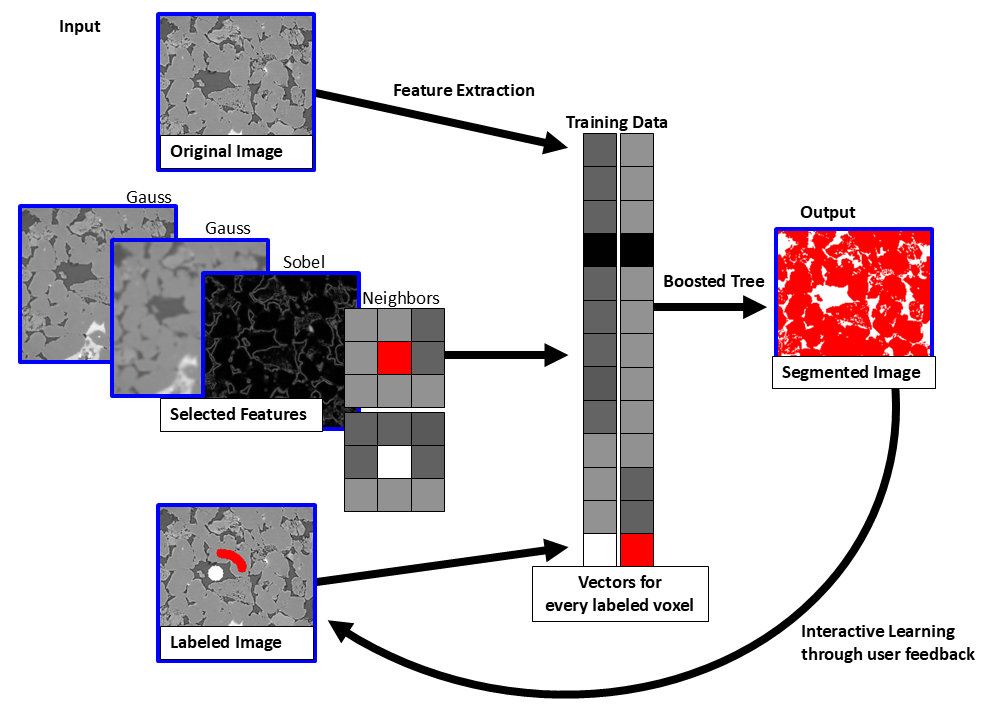
Both models perform well in many cases and are very fast. For training data, information about neighboring voxel data is used, and different filters are applied to the input image:
Gauss filter for blurring the image
Sobel filter for emphasizing the edges
The figure below shows three filtered images: one with a small sigma for the Gaussian filter, one with a larger sigma, and one filtered with the Sobel filter. Then, a vector containing the corresponding data from the original image, each of the filtered images, neighboring voxels, and the labeled image is built for each voxel. The diagram below illustrates this process for two voxels. The Random Forest/Boosted Tree algorithm learns from these vectors and segments the image.
The Random Forest and Boosted Tree methods may be limited in the case of large-scale relevant features. This is because the decision for each pixel depends on its surroundings, particularly the fixed-size Gauss kernel. For example, if an image contains pores of different materials with similar gray values and the only difference is the border with the solid material, the Boosted Tree method could make the wrong decision for large pores. In such cases, Unet methods are recommended. Additionally, if there are more than two materials in the structure, the methods may be limited, and the Unet method is preferable.
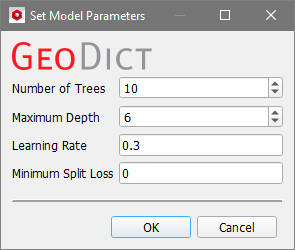
Click on the gear wheel icon to access to the parameters that define the model setup. The Set Model Parameters dialog opens. The following parameters can be set for the Boosted Tree model:
Number of Trees: This defines the number of parallel trees constructed during each iteration. While more trees result in a higher learning ability, they can also lead to overfitting. A model that is overfit does not generalize well.
Maximum Depth: The maximum depth of a tree. Increasing this value makes the model more complex and more likely to overfit.
Learning Rate: The learning rate is the amount by which the step size shrinks with each update, preventing overfitting. It must be >0 and ≤1. A lower learning rate results in a longer runtime, but a higher generalization ability of the final model.
Minimum Split Loss: The minimum amount of loss reduction required to create an additional partition of a leaf node in the tree. The larger the minimum split loss, the more conservative the algorithm.
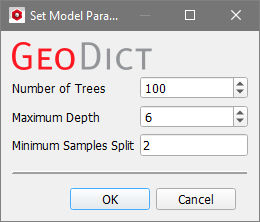
The following parameters can be configured for the Random Forest model:
Number of Trees: This defines the number of parallel trees constructed during each iteration. While more trees result in a higher learning ability, they can also lead to overfitting. A model that is overfit does not generalize well.
Maximum Depth: The maximum depth of a tree. Increasing this value makes the model more complex and more likely to overfit.
Minimum Samples Split: The minimum number of samples required to split an internal node. The larger the value of the minimum sample split, the more conservative the algorithm will be.
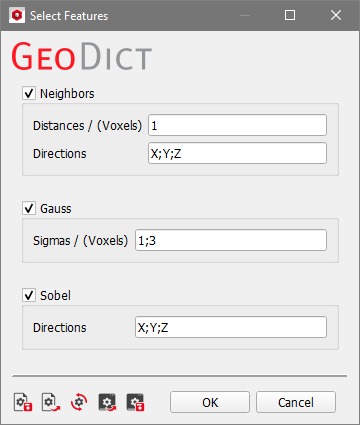
The Select Features dialog allows you to adjust the parameters of the filters applied to the Boosted Tree and the Random Forest methods.
These filtered images are considered in the training of the model as shown in the figure above to gain more information for each voxel. They are used also in the segmentation, but only as a reference for the model, since they can help to identify which label is correct for which voxel in the original image. Check the features that should be used and enter a list of parameters for the feature runs, separated by “;”:
As shown in the figure above, these filtered images are considered during model training to gain more information about each voxel. They are also used in segmentation, but only as a reference for the model since they help identify the correct label for each voxel in the original image. Check the features to be used, then enter a list of parameters for the feature runs, separated by semicolons:
The Neighbors method has two parameters: Distances and Directions. With the default settings, the neighborhood is examined three times, once for each direction, with a distance of one voxel. Voxels within the given distance are considered when determining how the current voxel should be labeled.
The Gauss filter has a parameter called Sigmas. Sigma is the standard deviation of the Gaussian function used by this filter. With the default settings, the filter runs twice: once with a sigma of 1 and again with a sigma of 3. The higher the standard deviation, the more blurred the image becomes. This filter is also described here.
The Sobel filter has a parameter called Directions. In the default settings, the filter is applied in all three directions. This filter emphasizes edges. It is similar to the Compute Gradient filter.
Unet
The deep learning methods Unet2D and Unet3D require more training data. Therefore, more labels must be provided manually. However, they can analyze scans more accurately and achieve better results. The name Unet refers to the U-shape of the neural network diagram, which consists of a constricting branch on the left and an expanding branch on the right. The number of layers in each branch determines the depth of the Unet. Unet3D considers the complete image, while Unet2D learns from a single slice in the specified direction. The default is the Z-direction.
Note! For a more detailed explanation of the Unet models and their underlying architecture, see Ronneberger et al., 2015 or the GeoDict-AI user guide.
Using the Unet models require a good GPU. For up-to-date recommendations visit our website.
Click on the gearwheel icon to access the parameters that define the model setup. The Set Model Parameters dialog opens. The following parameters can be set for the Unet models:
Window SizeX, Y, and Z: For AI model training, the Unet algorithm divides the gray value image into windows of a specified voxel size. A larger window size requires more training data and time, but increases the learning potential. The windows are placed according to the given Stride or around every labeled voxel.
Number of Epochs: The number of times, the training data is used to train the neural network. The learning time grows linearly with more epochs, but the learning potential increases as well. However, too many epochs can lead to overfitting.
Depth of the Unet: The number of levels in a Unet. A higher depth requires more training data, increases runtime, and increases GPU memory usage, but also increases learning potential.
Number of Features in First Layer: This is the number of features that the model can learn in the first layer. More features require more training data and time, but increase the model's learning potential.
Kernel Size: Control the size of the convolutional kernel. A kernel is a feature detector, i.e., an n x n x n voxels box (or an n x n square for Unet2D), with a defined pattern. The size n is the number of voxels in one direction and must be an odd number. Common values are 3 or 5.
Use Strides: Define a window stride using the values StrideX, Y, and Z, which determine how many voxels the window moves for each new training sample starting in the upper left corner. Then, only windows containing labeled voxels are considered. If this option is not checked, all windows around labeled voxels are used for training.
Normalize: Use the minimum and maximum gray values in the image to normalize the input images. If this option is unchecked, the values of 0 and the maximum are used.
For a more detailed explanation of the Unet parameters refer to the GeoDict-AI user guide.
In Unet2D, the windows determined by the Window Size parameter are 2D slices, meaning one of the three parameters is set to 1. The default setting of Z = 1 usually leads to good results. If all three size parameters are greater than one, the Unet3D model is applied automatically.
The Batch Size option is only available for Unet models and refers to the number of samples used for training simultaneously. For example, with a Batch Size of 4, the error is computed and the network is updated for one window at a time before moving on to the next four windows.
In literature there is usually a warning about too large values for batch size due to the potential of overfitting. However, in 3D image analysis the batch size is limited by the available GPU memory. If the value is chosen too high, an error occurs shortly after starting the training. Reduce the batch size and try starting the training again.
The literature usually warns against setting the batch size too large due to the potential for overfitting. However, in 3D image analysis, the available GPU memory limits the batch size. If the value is set too high, an error will occur shortly after training begins. Reduce the batch size and try starting the training again. It is recommended that you set the value to the maximum available GPU memory. This value is often between 1 and 8, depending on the GPU hardware. Modern GPUs allow for even higher batch sizes.
If multiple GPUs are available, select the one on which it should run by checking the corresponding box. If licensed, you can use multiple GPUs for training and segmentation. The batches will then be distributed equally among the different GPUs.
If no GPU is detected, the training and AI segmentation will run on the CPU. This process usually takes much more time and is therefore not recommended.
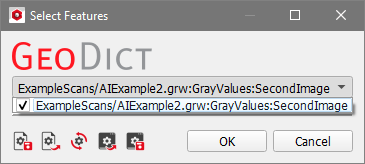
Click Select Additional Images to choose which loaded images should be used for training, in addition to the current image. You can load multiple images into the Image Processing dialog by selecting Keep existing Volume Fields in the Import Geometry dialog. This allows you to take multiple images of the same structure's cutout into account for training. For this, the images must be the same size and fit to the labels. If the network was trained on several images, those images are also needed for segmentation.
Different scanning settings can produce different types of images. For example, it can sometimes be difficult to achieve good contrast for all material phases in an image at the same time. In this case, it is better to take two images: one with good background separation and one with good contrast between the solid materials. When training the neural network, both data sets are considered, resulting in better outcomes compared to considering only one image.


 to access to the parameters that define the model setup. The Set Model Parameters dialog opens. The following parameters can be set for the Boosted Tree model: